A workspace for your coding tools. A guide for the things you can actually do with it.
Cairngorm brings terminals, a code editor, Git, test observation, documents and a project calendar into one native desktop app. Bring your preferred CLI and its existing setup, or choose a compatible model connection for the optional native agent. No single model company defines the workspace.
This is a personal project by GelArria, shared with the intention of releasing it as open source under MIT—not a subscription service. The direction is an agent workspace with an editor-first feel, plus the tools useful along the way.
The app is still a development preview. Get the Windows, macOS or Linux installer from Download & install. Prefer to build it? Use Install from source.
Screenshots show the actual app with isolated sample data. Select an image to open it at full size; captions explain what to look for.
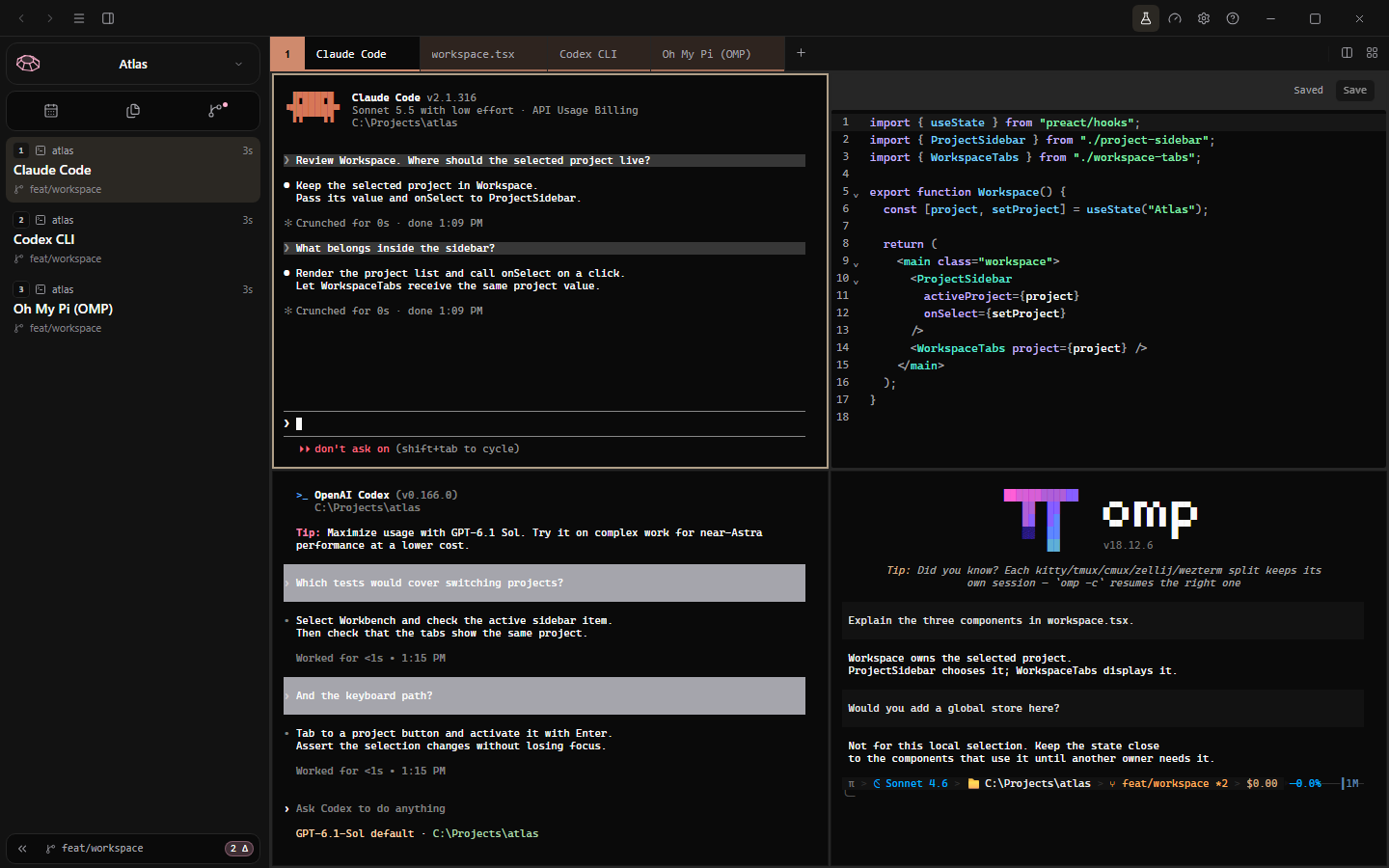
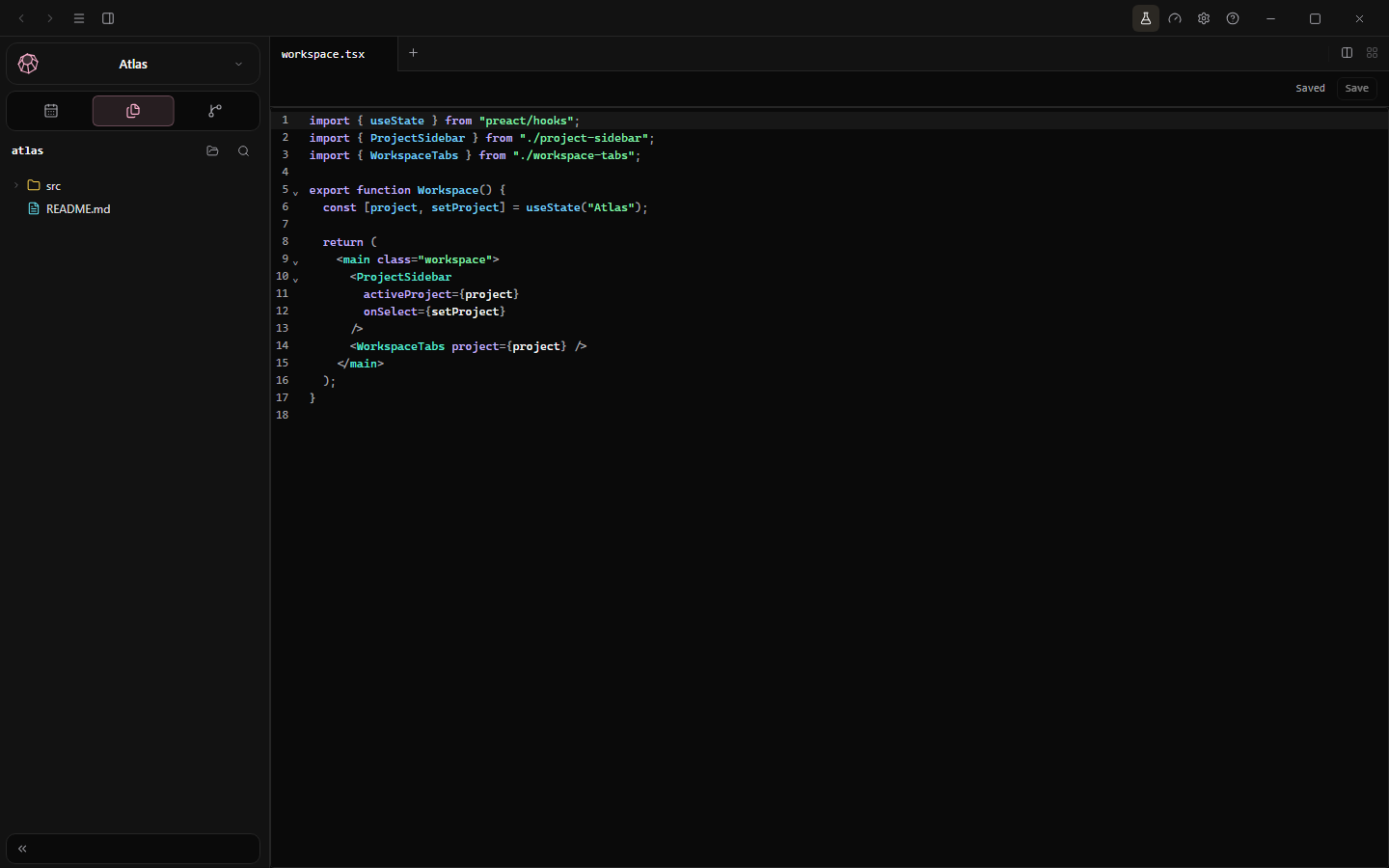
Terminals and editor together. These are actual components with sample project data.
Start with the workspace. An AI account is optional.
Open your desktop build and choose Open in Projects, or press Ctrl+Shift+O to select a folder.
A new folder gets a project and a shell in that directory. Opening an existing project folder reuses its project.
Open Files with Ctrl+B and select a source file. Save edits with Ctrl+S.
Create another terminal with Ctrl+N. Run your usual build command or your installed CLI agent's normal launch command.
Use the split controls to keep output beside your code. Double-click a pane to zoom; press Esc to restore.
Run the project's tests and inspect Git changes before committing.
For AI-powered work, start with Choose your AI setup. A terminal CLI keeps its own configuration; the native agent needs a compatible endpoint or supported Codex integration.
A folder, your CLI tools and a file. Select any screenshot in this manual to open its full-size original.
Start
Download & install
Cairngorm 0.4.2 for Windows, macOS and Linux.
These are development builds and they are not code-signed yet: Windows SmartScreen asks before the first launch, and macOS needs one Terminal command (below). Check a download against its SHA-256 below.
Windows: the -setup.exe installer, for 64-bit Windows 10 and 11. It installs for your user only, without administrator rights. If SmartScreen appears, choose More info → Run anyway.
macOS 10.15 or later: the .dmg for your Mac's chip. Apple silicon (M1 and later) takes macos-aarch64; older Intel Macs take macos-x86_64 (Apple menu → About This Mac shows which). Open the .dmg and drag Cairngorm to Applications. Apple has not notarized this build yet, so macOS blocks the first launch and may say the app is damaged; it is not. In Terminal, run xattr -dr com.apple.quarantine /Applications/Cairngorm.app once, then open Cairngorm as usual.
Ubuntu, Debian, Linux Mint, Pop!_OS: the .deb package, installed with sudo apt install ./Cairngorm-0.4.2-linux-x86_64.deb.
Fedora, openSUSE, RHEL: the .rpm package, installed with sudo dnf install ./Cairngorm-0.4.2-linux-x86_64.rpm.
Any other Linux (Arch and others): the .AppImage. It uses your system’s WebKitGTK 4.1 to stay small: install it first (sudo pacman -S webkit2gtk-4.1 on Arch; most GNOME desktops already have it), make the file executable with chmod +x Cairngorm-0.4.2-linux-x86_64.AppImage, then run it. Without WebKitGTK it tells you what to install.
ARM64 Linux (Raspberry Pi OS 64-bit, ARM laptops and servers): the same three formats in their ARM64 versions.
Check a download
Compare the file's SHA-256 with the table: Get-FileHash .Cairngorm-0.4.2-windows-x86_64-setup.exe in PowerShell, shasum -a 256 Cairngorm-0.4.2-* on macOS, or sha256sum Cairngorm-0.4.2-* on Linux.
Open it from a terminal
The installers add a cairngorm command: cairngorm . opens the current folder as a project and cairngorm -a claude starts Claude Code there. Run cairngorm --help for every option. On Windows it works in terminals opened after the install.
Check the running version in General → Diagnostics.
Find your app version
Open Settings → General → Diagnostics for the running app's version and log location, or run cairngorm --version. These installers report 0.4.2; the withdrawn Windows preview reports 0.1.0.
Start
Changelog
A record of the details being refined.
The public release history lives in GitHub Releases ↗. The public Cairngorm repository ↗ holds the application source, starting with 0.4.2. Each published version has a release there with its installers and checksums; the current development notes below are not a published release.
Follow Cairngorm's next version and distinguish the development preview from the builds you can download.
Current development changes
Source snapshot 757dffe · Source version 0.4.2
Documents and SDK v1: install isolated document editors, edit .xlsx cell values and formulas, and expose typed agent operations without rebuilding Cairngorm. See Documents & spreadsheets and the dedicated SDK guides.
Installed applications: agents discover scriptable apps and use their own automation APIs, with per-application consent. Windows COM, macOS scripting dictionaries and application MCP servers are separate drivers. See Installed applications.
Gemstone themes: light and dark stone-inspired presets join the searchable theme library. Claude Code terminal sessions also relay usage-limit and permission-mode information when available.
Separate plugin workspaces:plugin sessions and browser storage are scoped to the plugin and source terminal, so a canvas in another project does not replace that terminal's local state.
More MCP clients: explicitly connect installed supported CLIs or register another client's existing JSON/JSONC or TOML configuration. Connection status distinguishes saved setup, recent MCP contact and a catalog that needs refreshing.
Tool visibility: plugin changes announce catalog updates. The client must expose tools directly or through discovery; a connected bridge does not prove the model can see them.
Keep agents running: closing the window can keep Cairngorm in the system tray while an agent or program runs; quit from the tray icon to stop them.
More stones and cuts: additional gemstone themes, project gem cuts and tag colours. Project gems rotate visibly again without needing focus or hover.
CLI detection: installed AI CLIs are found even outside the shell's PATH, and their sign-in state is read more reliably.
Gemini CLI as an agent engine: the Cairngorm agent can run through Gemini CLI, alongside the existing engines.
Agent sessions: agent CLI sessions are restored with their project, and a project loader stays visible until the agent draws its first screen.
Security: a project's Git configuration can no longer run code, application grants are scoped per project, and agent configuration edits can be removed.
Stability: fixes a Windows crash under heavy terminal load, cuts idle CPU from always-running animation loops and stops the watchdog from closing a throttled hidden window. Desktop runtime updated to Tauri 2.11.
Terminal restoration:full-screen CLI views restore using the terminal's dimensions when switching projects, including hidden panes. The production build also avoids a terminal minification regression.
These notes describe the current app source. The website's chapters are now live demos of the current app; the Plugins demo shows connection consent, sample MCP-client registration and connection states, and replays the genuine Claude Code transcript of a recorded tldraw request. The documentation screenshots are taken from the same live demo build and sample project (C:\Projects\atlas on feat/workspace). The workspace demo shows three distinct conversations in the original Claude Code, Codex CLI and Oh My Pi (OMP) TUIs, captured in that sample project with local sample replies rather than external model output. The tldraw screenshot keeps its real recorded execution. No demo claims to show every native feature.
Cairngorm 0.4.2
Development build · Windows, macOS (Apple silicon, Intel) and Linux (x86_64, ARM64)
Proxies and company certificates: agent connection checks, AI commit messages, plugin sign-in and update checks follow HTTPS_PROXY, HTTP_PROXY, ALL_PROXY and NO_PROXY, and trust the extra certificates in NODE_EXTRA_CA_CERTS. Certificate checks are never turned off.
Managed Windows: agent sessions are recorded for restore even when PowerShell runs in Constrained Language mode.
Projects: creating, renaming or recolouring a project is kept when the database is busy, and saved on the next start.
Git: when Git cannot read the repository, the Changes panel says so instead of showing “Working tree clean”.
Terminals: panes stay visible and usable while the Cairngorm agent starts, and closing a detached window no longer brings a starting terminal back.
Cairngorm agent on Windows: its shell tool tells the model it runs Windows cmd.exe, so commands use the right syntax.
Cairngorm 0.4.1
Development build · Windows, macOS (Apple silicon, Intel) and Linux (x86_64, ARM64)
0.4.1 is the first version with installers for Windows, macOS and Linux. The source moved past 0.3.9, 0.3.10 and 0.4.0, which were never published. These highlights describe the current preview; they are not a claim that every feature first appeared in this version.
From your terminal: the cairngorm command opens a folder as a project, a file in the editor, or an agent CLI in a new tab.
Get the installers in Download & install. They are development builds and not code-signed yet.
0.1.0
Previous Windows preview · Withdrawn
This was the unsigned Windows x64 development preview, predating the 0.4.1 notes. Its installer is no longer offered; 0.4.1 replaces it. No detailed release notes were published for this build. See Download & install for the current installers.
Start
Install from source
These steps assume you already have the app's source checkout. To install a ready-made build instead, see Download & install.
The app these steps launch. A browser preview alone does not provide native terminal, filesystem or installer behavior.
Prerequisites
Install Node.js/npm, Bun (the app declares 1.3.14), Rust/Cargo and the Tauri v2 platform prerequisites. Windows needs the appropriate Microsoft C++ build tools and WebView2. Install Git and any model CLI separately.
Run the desktop build
# From the app checkout, not the website checkout
npm install
npm run tauri dev
npm run dev alone is a frontend browser preview, not the native terminal/filesystem/SQLite runtime. Desktop startup creates missing agent configuration without replacing a saved setup.
Package the app and its agent
The current Tauri build hook runs the frontend build and scripts/build-agent.mjs to prepare the native-agent sidecar. Use the platform-specific Tauri configuration in your checkout rather than an executable compiled for another system. For a standalone sidecar build:
node scripts/build-agent.mjs
npm test runs app unit tests; npm run build checks/builds the frontend. npm run tauri build creates a local native package using the current build hooks.
npm run tauri:resetconfig overwrites the agent configuration. It is not a setup step. Back up your saved configuration before a deliberate reset.
Workspace
Projects
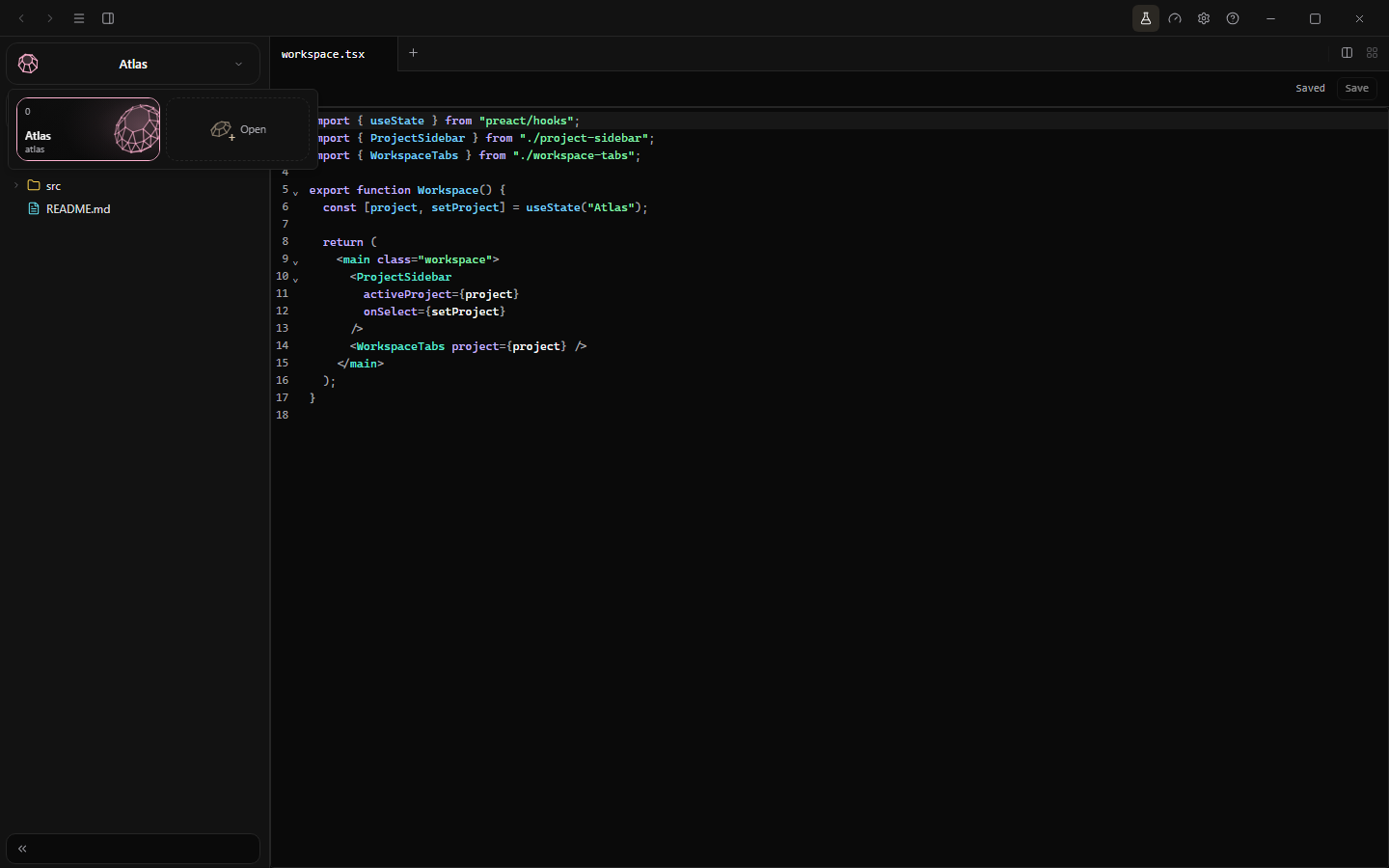
A project is the folder context for terminals, files, Git and calendar entries. Select its card in the sidebar to switch workspaces.
The project picker changes folder context; Open adds a folder rather than a cloud workspace.
Open and organize
Open a folder: use Open or Ctrl+Shift+O. The same normalized root reuses an existing project.
Rename: double-click the card, press F2 while it is focused, or choose Rename from its context menu.
Change the root: right-click the active project header and choose Change Folder…. Check the displayed folder before launching new commands.
Navigate: use back/forward actions, mouse side buttons, or Ctrl+Alt+PageUp / PageDown for previous/next project.
The card summarizes terminal count and activity; it is not proof that an agent completed your task. Switching projects is not an instruction to terminate their running processes.
Show Files with Ctrl+B, then select a file to open an editor pane. Ctrl+O opens the file picker; Ctrl+Alt+N creates a file; Ctrl+S saves.
Files stays beside the editor. The source and folder tree here are isolated sample data.
Work from the file tree
Right-click a file or folder for the available actions. With a real folder open, you can create files/folders, rename, duplicate, cut/copy/paste, reveal paths or open a terminal. Open in Split keeps another pane alongside the file. Folders also offer Find in Folder….
Use Copy Path or Copy Relative Path when passing a precise location to a CLI agent. In Git repositories, Add to .gitignore is shared with the repository; Add to .git/info/exclude is local to that checkout.
File operations act on your disk. Review the target before deleting or replacing anything. Files dropped without a real folder have a smaller, in-memory action menu.
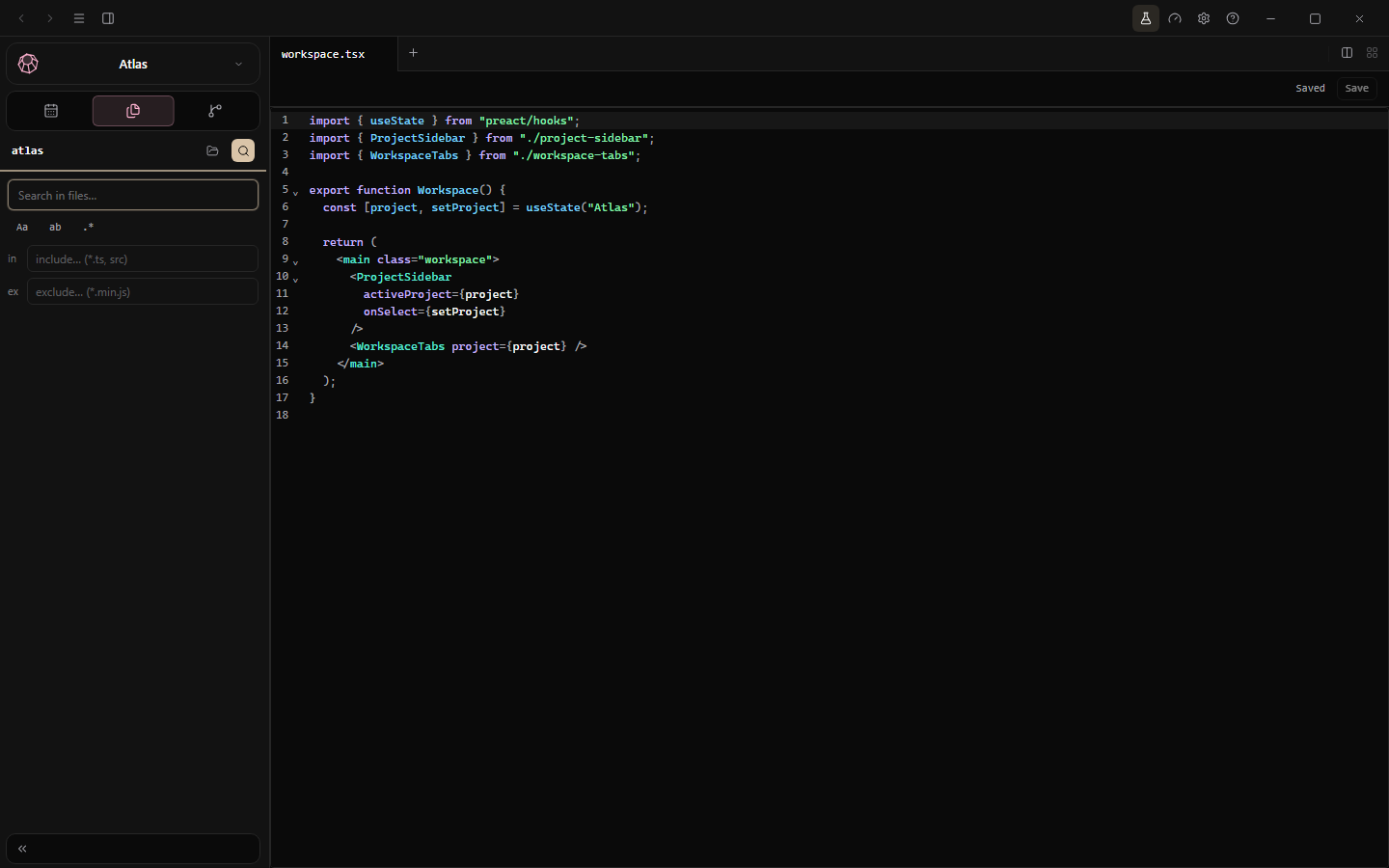
Open Files → Search in files in an active project. Enter a query; select a result to open its file at the matching line. Expand or collapse file groups to keep the results readable.
The search controls before a query. No fabricated result list is shown.
Narrow the search
Aa: match case.
ab: match whole words.
.*: use a regular expression.
in / ex: include or exclude paths/patterns, such as *.ts, src or *.min.js.
Normal text queries need at least two characters; regular expressions need one. Search is scoped to the open folder, not your whole machine. For a narrower starting point, use a folder's Find in Folder… action.
Workspace
File previews
Open a supported file from Files. Cairngorm chooses its viewer by file type, so a README can be read as a document rather than a wall of markup.
Read Markdown, then edit
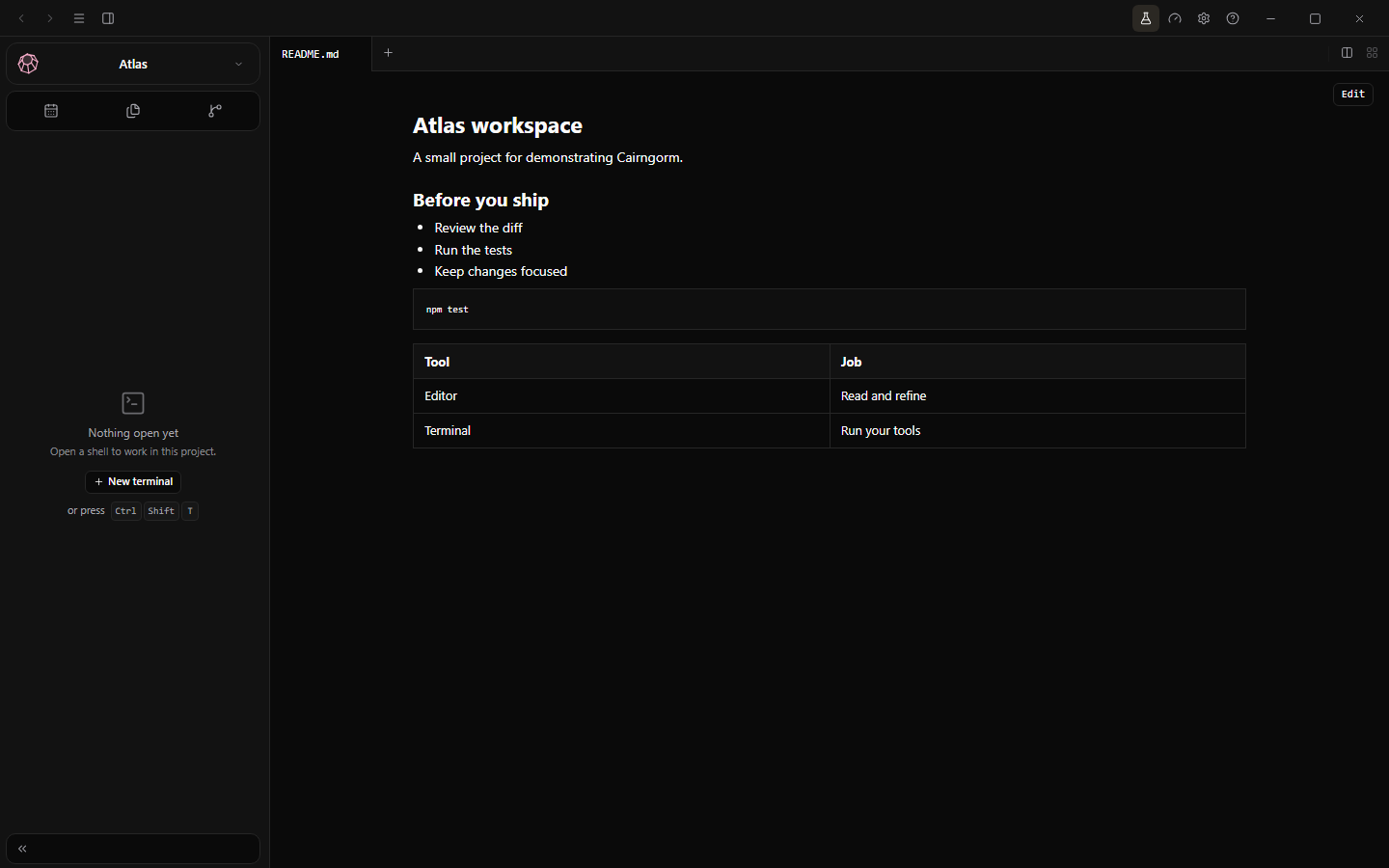
Markdown renders headings, code, lists and tables. Use Edit to work on the source; save deliberately before closing. The example below is a sample README rendered by the app's own viewer.
The Markdown viewer renders the document; Edit returns to its source.
Other viewers
The app also has viewers for images, PDFs, spreadsheets and notebooks. Current source builds add the editable .xlsx document provider and SDK v1 for installing more file formats. A preview is not permission to run notebook code or execute an embedded command. Rendering support and size limits differ by format; use a dedicated application when the preview cannot represent a file faithfully.
Workspace
Documents & spreadsheets
Open a document beside your agent. Keep control of what gets saved.
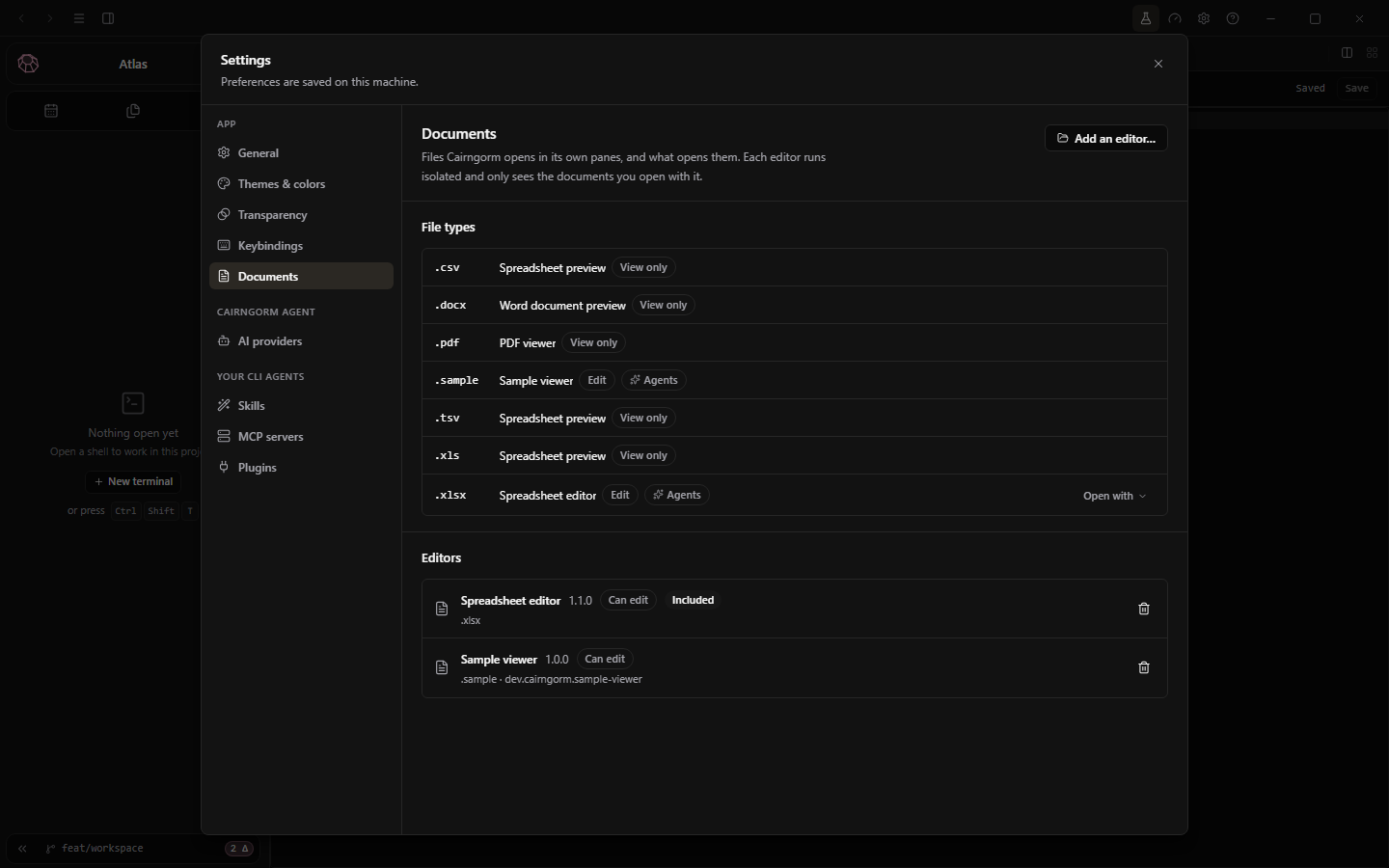
Open a supported file from Files, or ask a connected agent to open it with cairngorm_open_file. Settings → Documents → File types lists the editor for each extension. Use Open with to change it. Included editors take priority by default; otherwise Cairngorm asks when several editors match.
File types and document editors are separate from installed desktop applications.
Edit an Excel workbook without Excel
The included Spreadsheet editor opens .xlsx files, edits cell values and formulas, and provides list-sheets, read-range and set-cells operations to agents. A blank workbook template lets agents create a new .xlsx inside the terminal's project with cairngorm_create_file; it never overwrites an existing file.
Formatting is read-only and formulas are not calculated in the pane. The workbook is marked for recalculation when Excel next opens it. Protected structural cells and invalid inputs are refused; use the desktop application's own API for charts or richer formatting.
Save, reload and detach
Use the pane's Save button or Ctrl+S. Cairngorm checks the on-disk version, keeps a private backup and replaces the file atomically. An external change or failed save leaves the original untouched and the pane dirty. Reloading or changing editors with unsaved work asks first. Drag the document tab into its own window, or choose Open in new window; saving and agent operations stay with the document.
Install another editor
Choose Settings → Documents → Add an editor…, select its folder, review the declared file types/capabilities and approve. Approval covers the folder's exact bytes; Cairngorm copies them into its private storage. Changes to the original folder require reinstalling. A changed installed copy is treated as broken. Removed included editors can be added back under Included with Cairngorm.
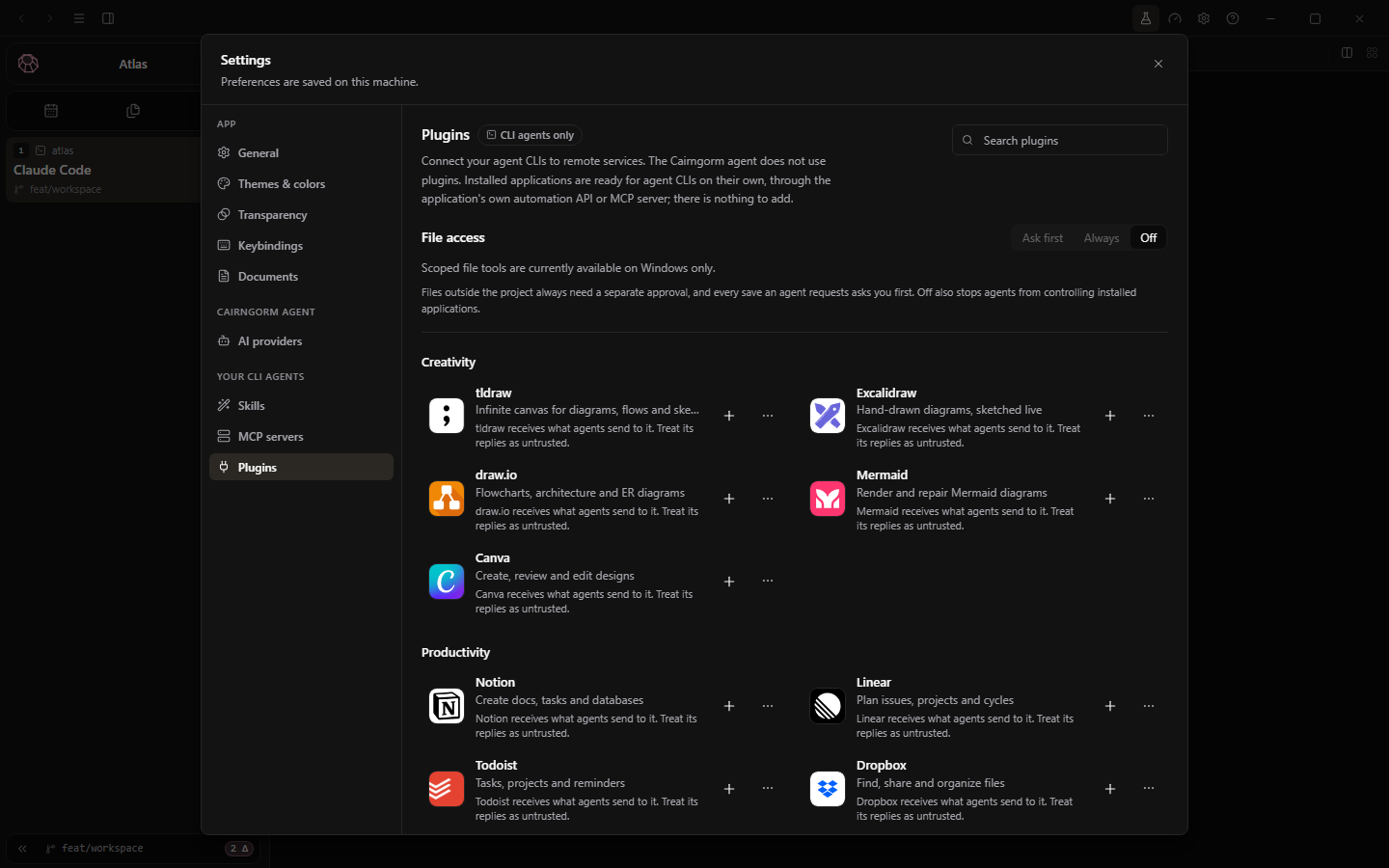
Document providers receive a bounded file snapshot, not arbitrary filesystem access. Agent file access asks for consent; Settings → Plugins → File access offers Ask first, Always or Off. Opening a file does not authorize silently overwriting it: agent saves ask separately and cannot replace your unsaved pane edits.
Let your agent use an application's real automation API, not a recreated editor.
Connected agents call cairngorm_list_apps to discover applications and their drivers. Availability depends on what is installed and scriptable on your machine. Each application asks for permission; review the target before allowing a script.
The catalog is not proof that a desktop application is installed or signed in.
Use the discovered driver
Driver
Tool and runtime
Requirements
com
cairngorm_app_script · Windows PowerShell · $app
Windows application with a registered automation object, such as Excel or Word.
osa
cairngorm_app_script · JavaScript for Automation · app
macOS application with a scripting dictionary and OS automation permission.
mcp
cairngorm_app_tools, then cairngorm_app_call
An application with its own MCP server, such as the Craft apps.
Work visibly and save explicitly
On supported desktop builds, an open application can appear beside the terminal in an application pane. The new-tab + menu lists discovered apps; a closed application offers a reopen action. This is the real program, with its own dialogs and unsaved work—not the isolated document provider. A browser recording cannot verify native window embedding.
Scripts must use the application's own object model and save explicitly. A COM script receives $started; a macOS script receives started, indicating whether this request started the app. Requests default to 120 seconds, with a maximum of 240. app-dialog, app-busy, timed-out and cancelled report why an operation could not finish. Read the message rather than assuming a dialog was dismissed.
Application scripts run with your user permissions and can modify real files. Back up important work, inspect results and close welcome/sign-in dialogs yourself. Office PDF export may require an installed printer; Cairngorm does not install or enable one automatically. Never rely on embedding or emergency window recovery to protect unsaved work.
Workspace
Terminals & CLI agents
Create a terminal with Ctrl+N, or choose an installed shell from the empty workspace's launch list. Confirm the project folder before running a command.
Three conversations rendered by the original installed CLI TUIs and replayed in the app: component review, test planning and project structure. Replies come from a local fixture, not external models; no credentials are used.
Run your own agent
# Run the tool you have installed, not all of them:
pi
omp  # Oh My Pi
opencode
claude
codex
These are examples, not a supported-tools ceiling. A terminal runs your installed commands; each CLI keeps its settings, authentication, model selection and controls. Cairngorm does not require a new login to host that terminal.
Manual CLI launch is independent of selecting a service for AI commit assistance or the native agent. See Choose your AI setup for the difference.
Usage and permission modes
Current builds can relay Claude Code's usage limits and track its session permission mode when the CLI supplies that information. Usage may be unavailable or stale; inspect the CLI itself before relying on remaining quota. Showing a mode is not permission to change it or bypass the agent's approval controls.
Return to a full-screen CLI
Current source builds restore historical terminal output at the terminal's recorded dimensions when you switch projects. A visible pane is fitted before replay; a hidden shell pane uses the PTY's saved columns and rows until it can fit on screen. This prevents a full-screen CLI from being restored as a narrow default-sized view.
Changing projects does not relaunch the CLI or submit its prompt again. This is display restoration for an existing session, not recovery of a program that has exited. See Current development changes for the source snapshot.
Shell, clipboard and scrollback
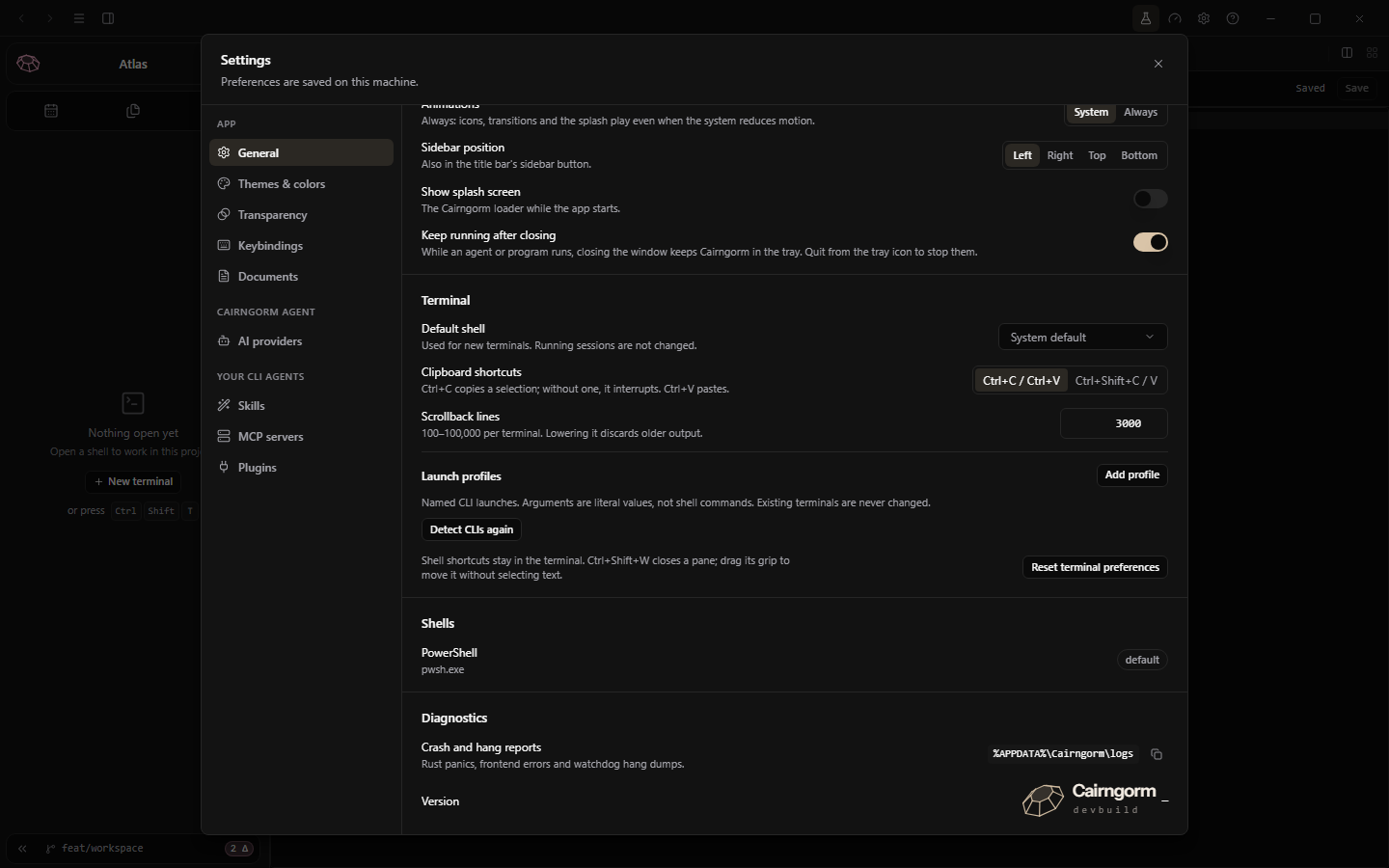
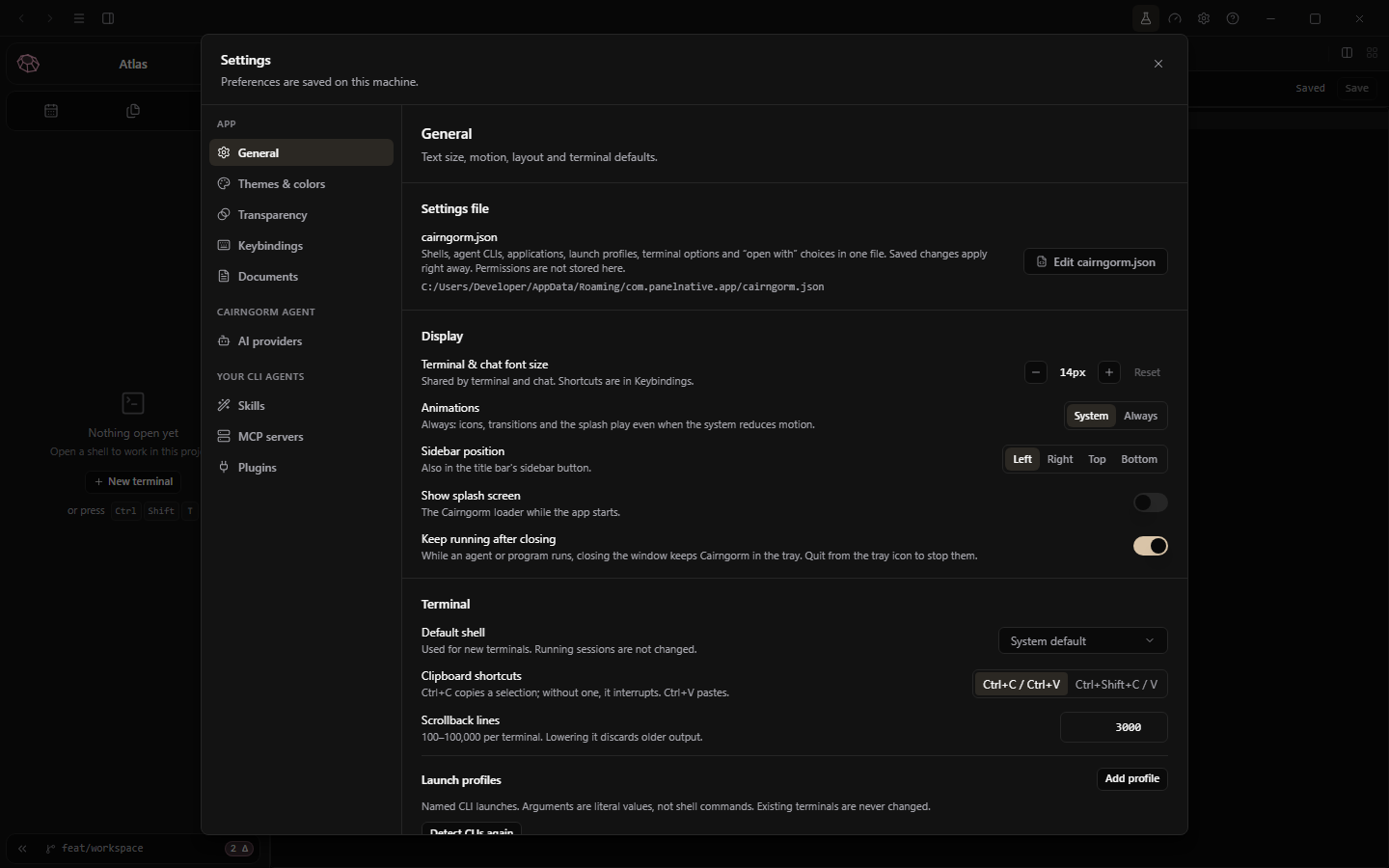
In Settings → General → Terminal, the default shell affects new terminals, not existing sessions.
Ctrl+C / Ctrl+V mode: Ctrl+C copies a selection; without one, it interrupts the program. Ctrl+V pastes.
Ctrl+Shift+C / V mode: those combinations copy/paste; plain Ctrl+C/V go to the running program.
Scrollback: 100–100,000 lines per terminal. Lowering the limit discards older buffered output immediately.
General → Terminal controls future shell selection and clipboard/scrollback behavior.
Hiding a pane is not closing its session. Save work and stop important processes deliberately before closing terminals.
Workspace
Panes & windows
Keep terminals, files, diffs and tests together, then bring one pane into focus when needed.
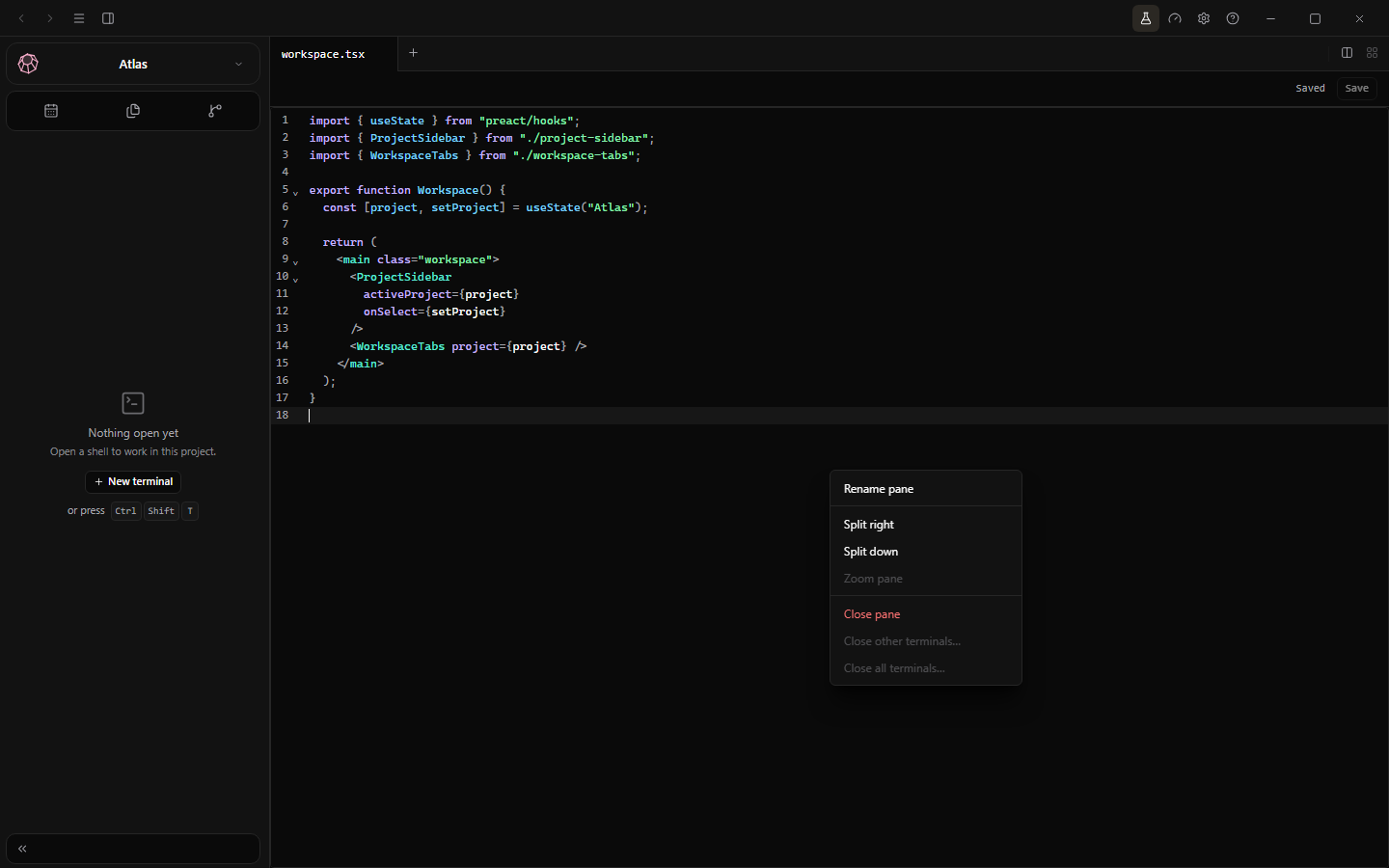
The context menu controls the current pane. Detaching creates a native window, which is not simulated here.
The tab-bar split buttons also offer internal splits, which stretch neighbors without gaps.
Double-click or choose Zoom pane / Restore pane from the context menu. Ctrl+Shift+Enter toggles zoom; Esc leaves it.
Ctrl+Tab / Ctrl+Shift+Tab move between tabs or panes.
Move, detach and close
Use the pane's grip to move it without selecting terminal text. Dragging panes can swap their positions. Drag a tab out to detach it into another window; Ctrl+Shift+A reattaches from a detached window.
Middle-click closes a tab. Ctrl+Shift+W closes the active pane. Closing can end a running session; merely switching or hiding views does not mean the task stopped.
Git is a sidebar module with diff/history panes, not a separate app mode. Workspace and Calendar are the top-level views.
Workspace
Native agent
The built-in agent is optional. Choose Native agent from the launch list, or press Ctrl+Shift+N in the workspace after configuring a provider.
Choose its route
Use AI providers → Cairngorm agent → Model endpoint for a compatible cloud, inference-host, gateway or local connection. The optional verified Codex integration can instead power the native agent through its CLI. The Claude Code shortcut powers commits only and requires paid Anthropic API billing with a separate explicit acknowledgement; Claude Free, Pro and Max logins are not accepted for automatic Cairngorm requests. Running an arbitrary CLI in a terminal does not make it a native-agent backend.
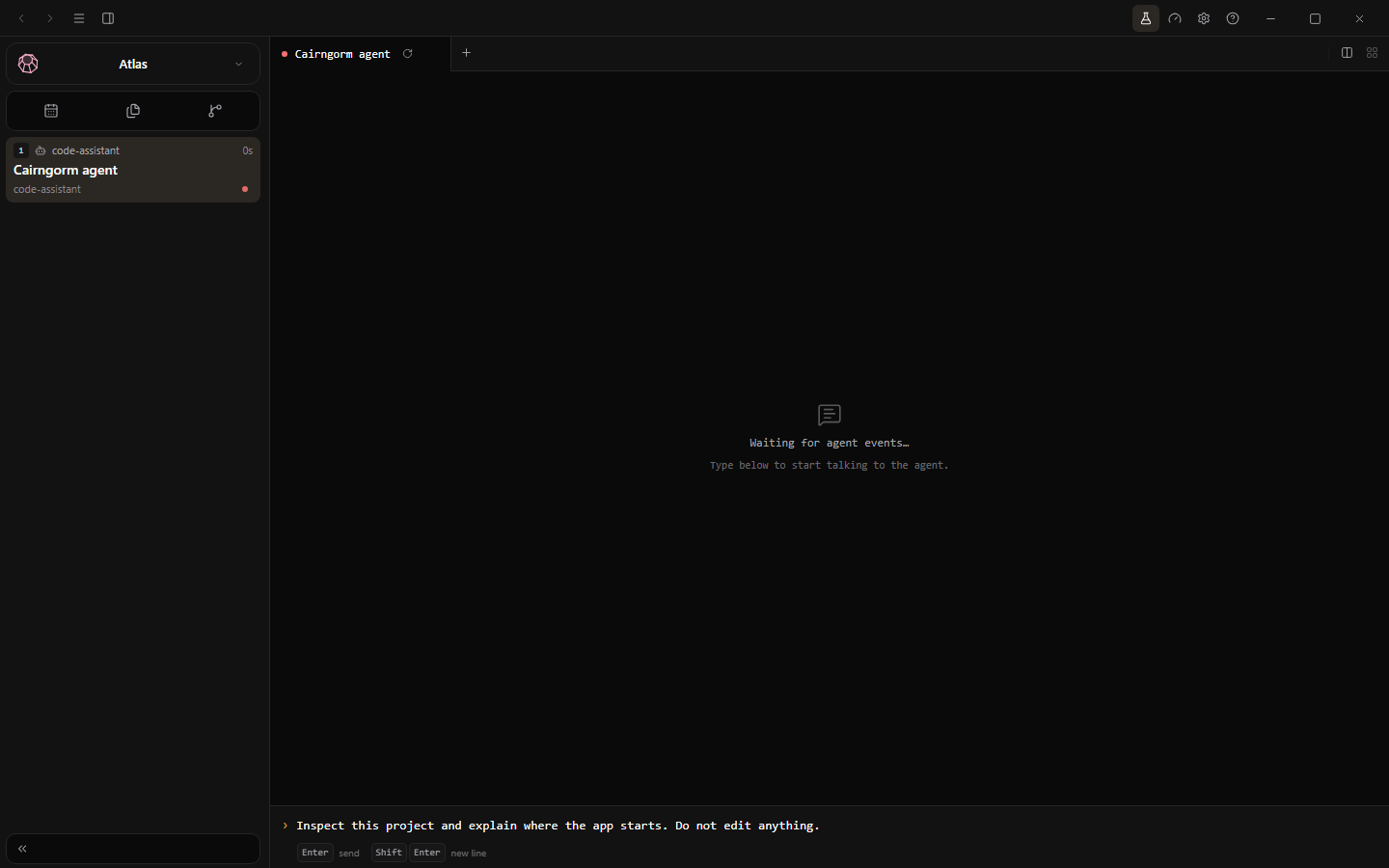
The actual Chat UI with an unsent sample prompt. No model request or invented assistant response.
Use Chat UI
The native agent supports terminal and Chat UI presentations. Chat UI shows messages and tool activity. Press Enter to send; Shift+Enter adds a line. Right-click messages to copy a message or the transcript.
Start with a bounded request, such as:
Inspect this project and explain where the app starts.
Cite the relevant files. Do not edit anything.
An agent can execute programs and modify files. Use trusted folders, backups/version control and review the resulting diff. A successful model response is not a passing build or test.
Git
Changes & diffs
Open an existing repository folder, then show Git with Ctrl+Shift+G. Git must be installed; commit identity and remote authentication are configured outside Cairngorm.
Check the active branch and changed/staged counts.
Use Changes view options for List/Tree, Path/Name sorting and staging/tracking grouping.
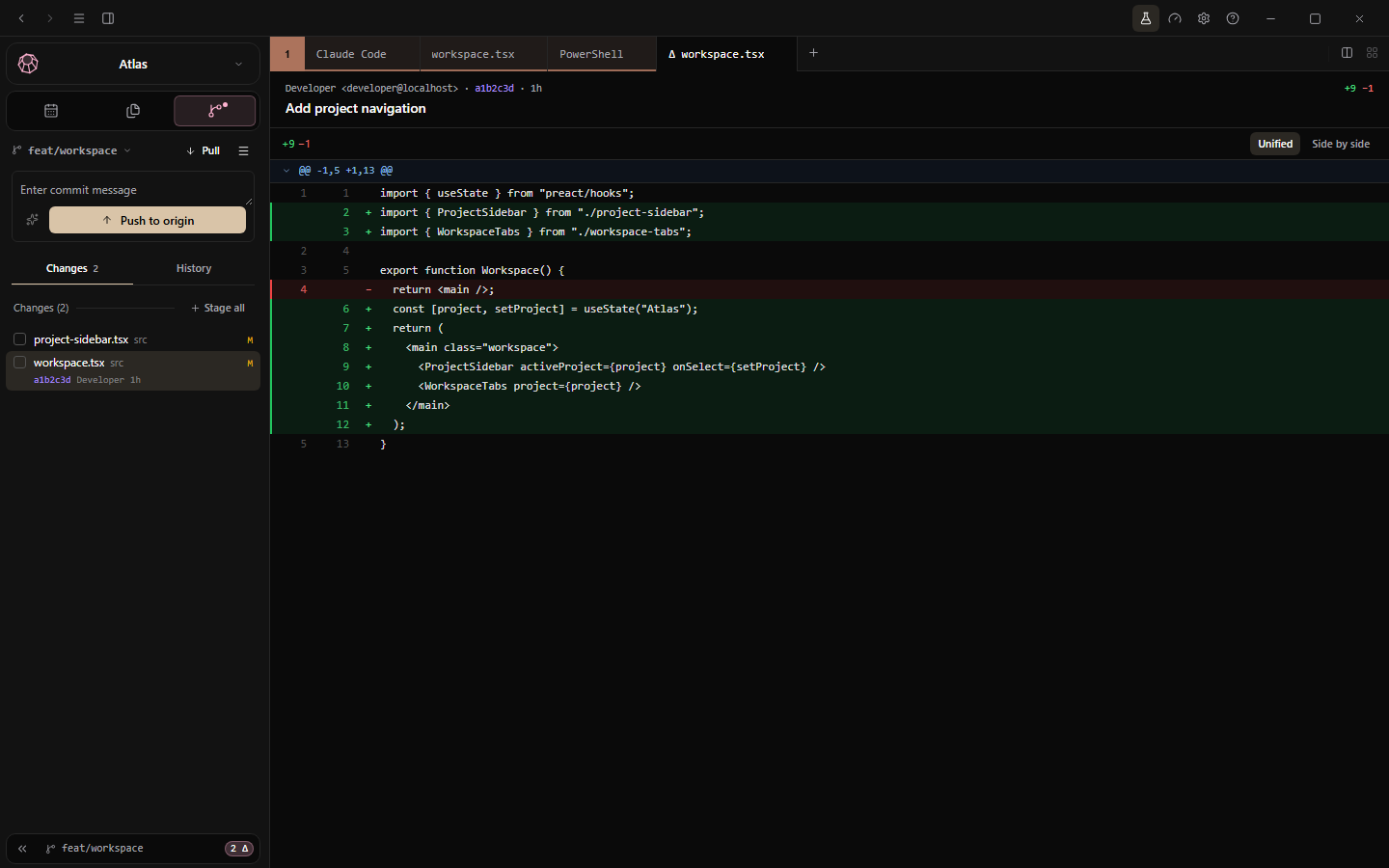
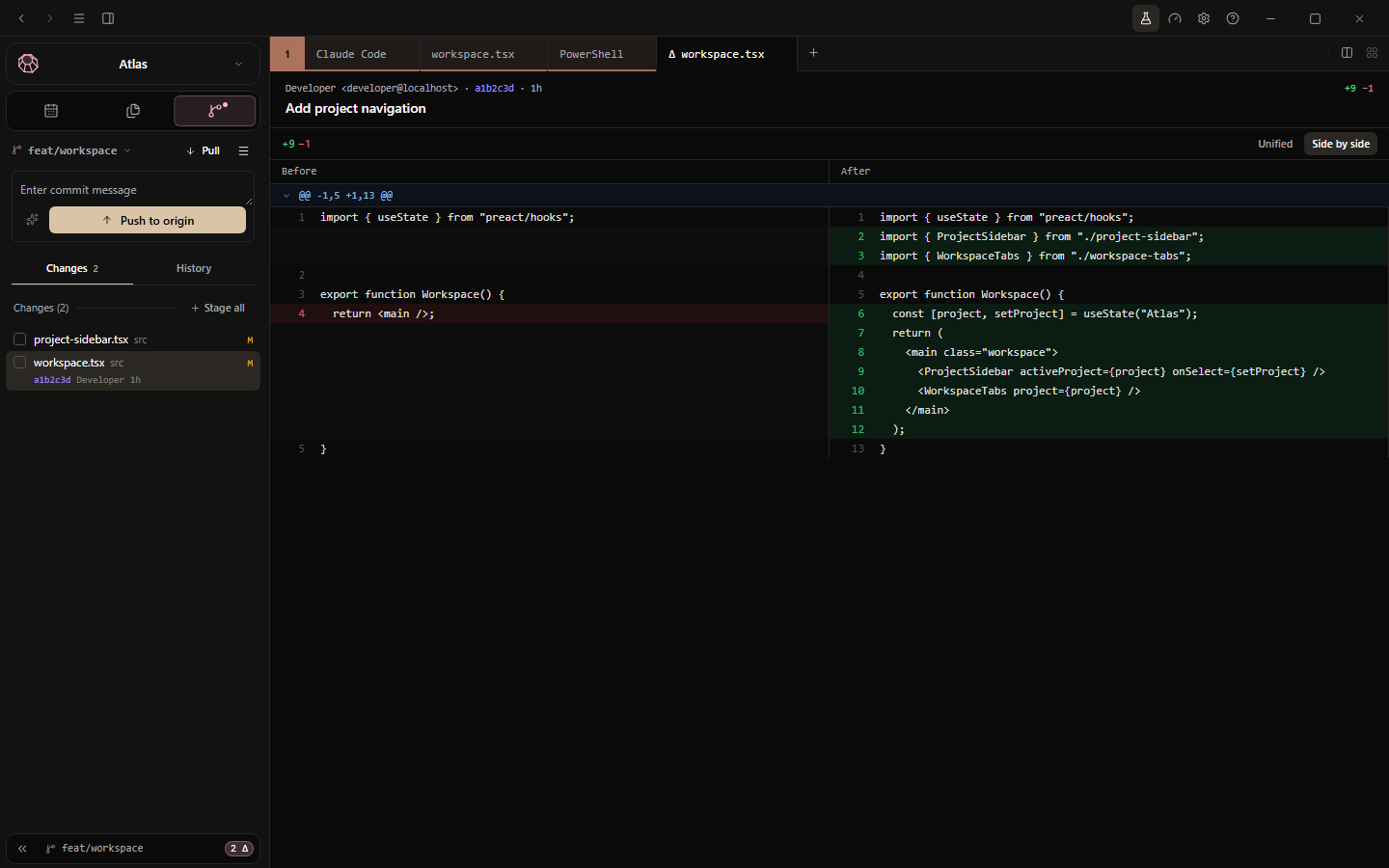
Select a file to compare its changes. Switch Unified / Side by side, inspect Before/After and expand or collapse hunks.
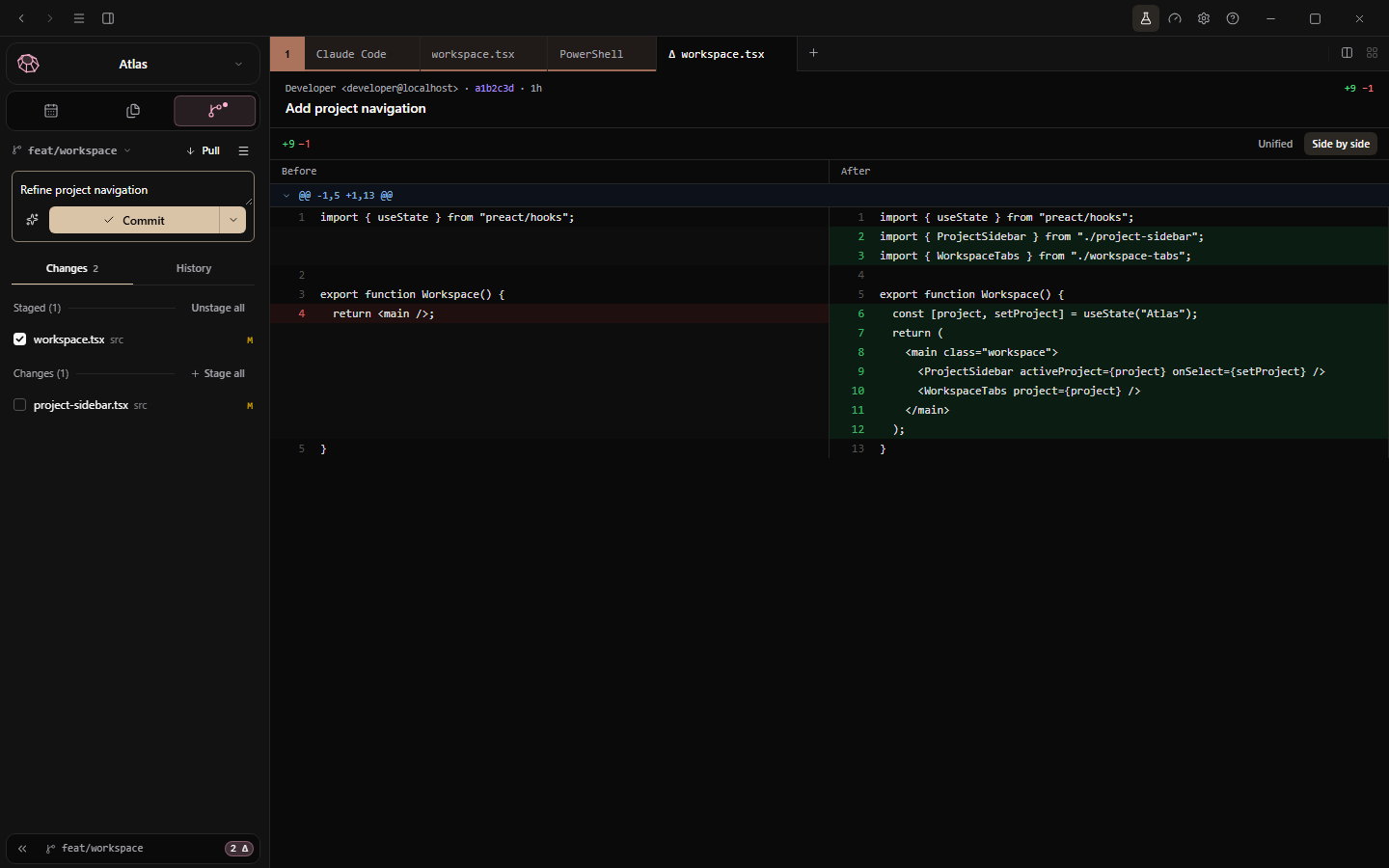
Use the row checkbox to Stage/Unstage a file. Stage all / Unstage all update the respective selection.
Unified keeps the change in one flow; green and red rows are sample additions and removals.Side by side separates before and after. Neither view commits or discards work.
Right-click a file to open its diff or editor, stage/unstage, copy paths or reveal it. Untracked files can be added to ignore rules.
Discard Changes throws away staged and unstaged changes to that file; Delete File removes an untracked file. Both require confirmation and cannot be undone by the app. They are not fixes for an unexplained error.
Amend changes the previous commit, rather than adding a normal new one. Skip Hooks bypasses repository checks. Use these deliberately; amending published history can require coordination with collaborators.
The website walkthrough types a draft into isolated fixtures. It does not commit, push or request an AI summary.
Git
History & Git Graph
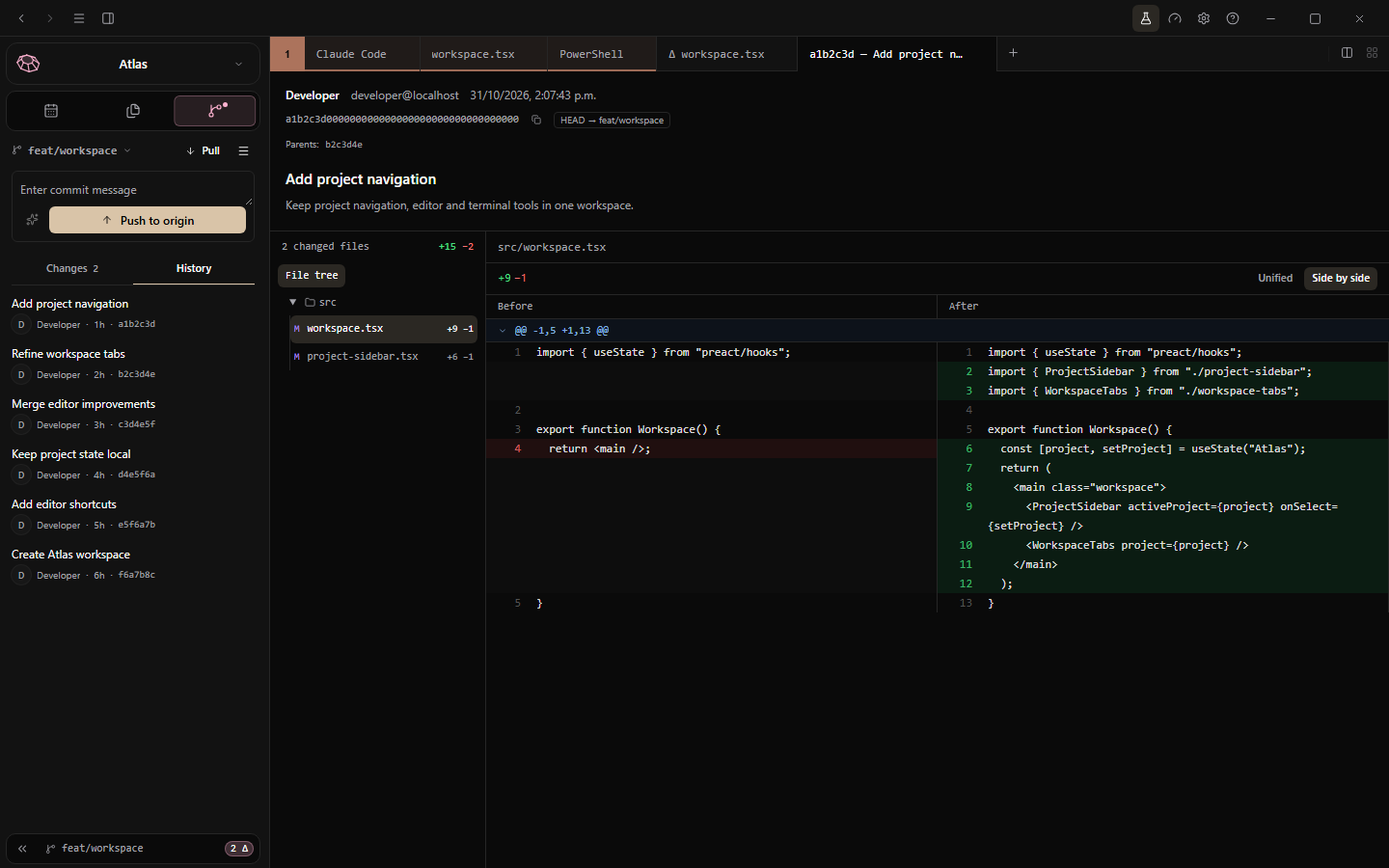
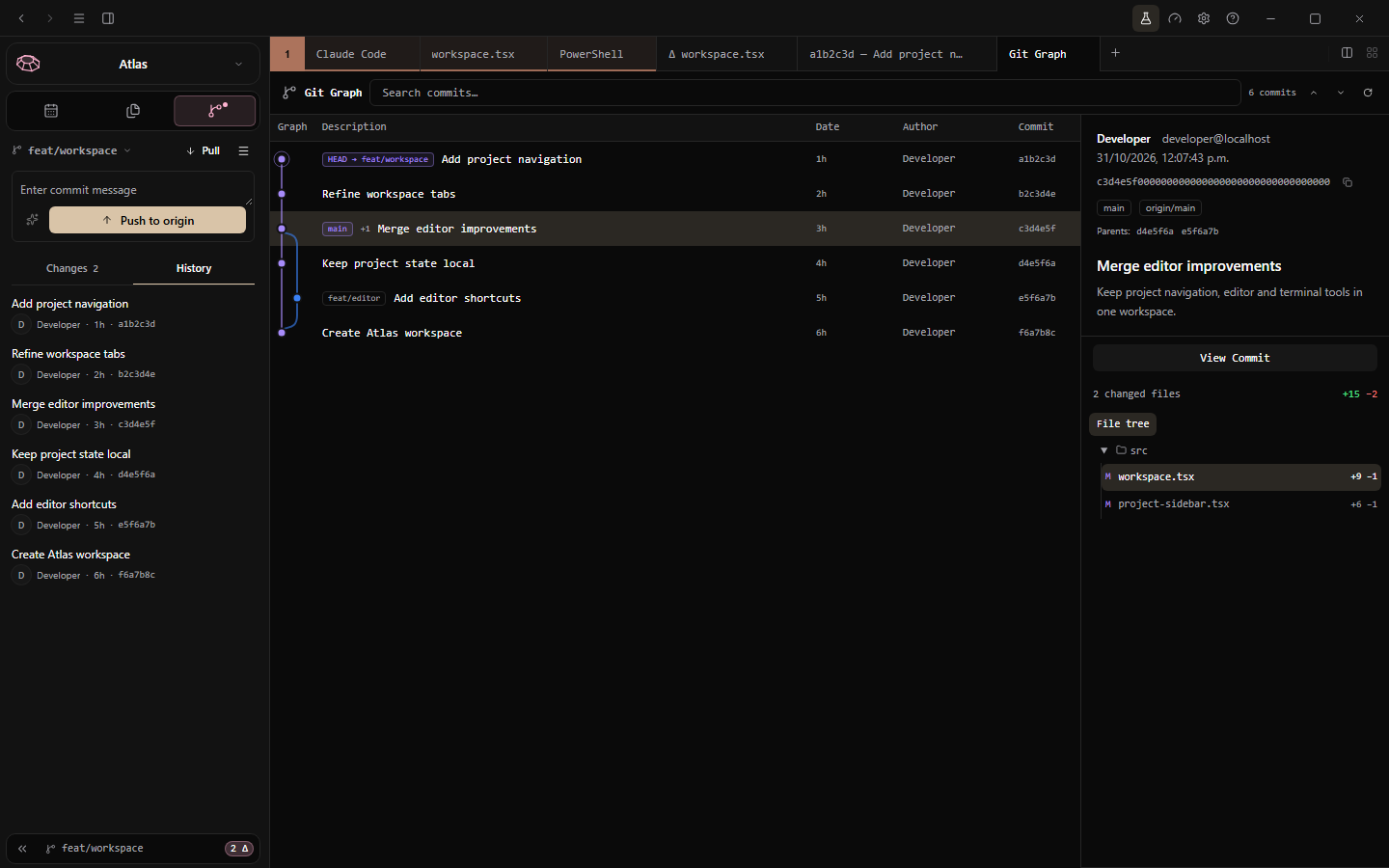
Select History in Git and open a commit. Inspect its author, hash, message and changed files, then select a file to read its historical diff. The file list can be shown as a tree.
History opens a commit's author, message and changed files. These commits are sample fixtures.
Explore the graph
Open Git Graph shows commit topology and branch references. Search by subject, author, hash or ref; navigate previous/next matches. Select a commit for its inspector, or double-click to open details. Refresh updates the graph; older history loads in batches when available.
Read topology and refs together before choosing a history operation.
Cherry-pick and revert
A commit's context menu offers Cherry-pick and Revert with confirmation. These create commits on your current branch and require a clean working tree. Resolve conflicts manually, stage the resolution, then use Continue; Abort cancels the in-progress operation.
Inspect the current branch and the selected commit before a history action. Revert is not the same operation as deleting changes from a working file.
Git
Branches & remotes
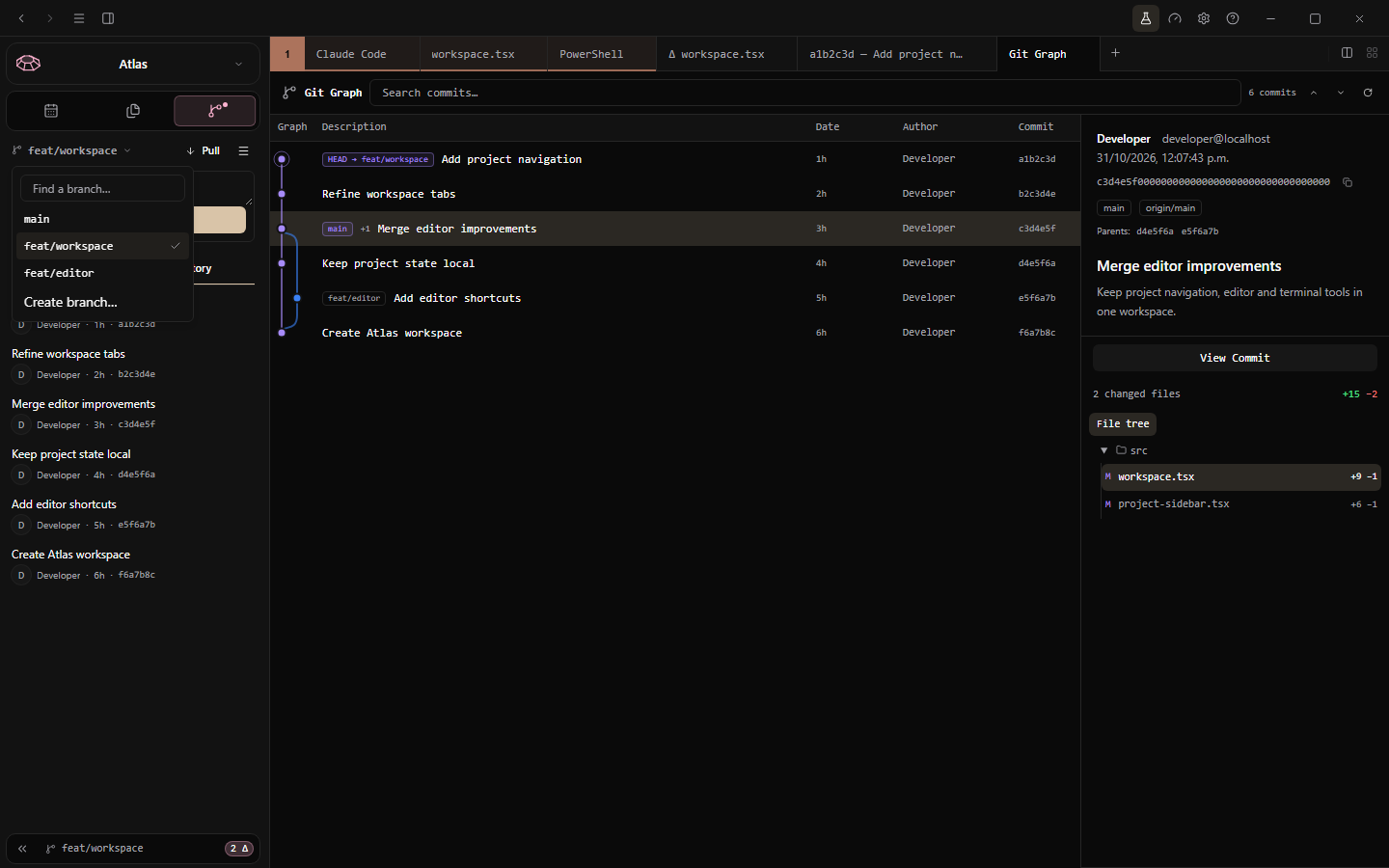
Use the current branch menu to filter, switch or create branches. Check uncommitted changes before switching. Push/Pull menus expose the configured remotes.
Fetch: update remote information before inspecting incoming changes.
Pull: fast-forward only by default; divergent history is not silently rewritten.
Publish / Push: send the intended branch to the selected remote after checking repository authentication.
Pull Rebase: confirmed operation. Commit or stash changes yourself first; no automatic stash/reset is performed.
Force push with lease: confirmed operation that can replace published commits. It is not plain force push or a substitute for inspecting remote changes.
The branch menu was inspected only; the demo does not switch branches or push.
Conflicts require manual resolution. Read the error, inspect the repository and coordinate before rewriting shared history.
Tools
Test results
Run an installed test runner from a Cairngorm terminal in your project's folder. Recognized commands/output automatically open a Tests pane. Monitoring can continue for inactive projects, hidden views and detached terminals.
npx playwright test --reporter=list
npx vitest run
python -m pytest -v
cargo test
go test -v ./...
node --test
bun test
The current parsers recognize Playwright, Vitest, Jest, pytest, Cargo/nextest, Go, Bun, Node and generic package-manager test commands/output. Individual result detail depends on the runner and reporter.
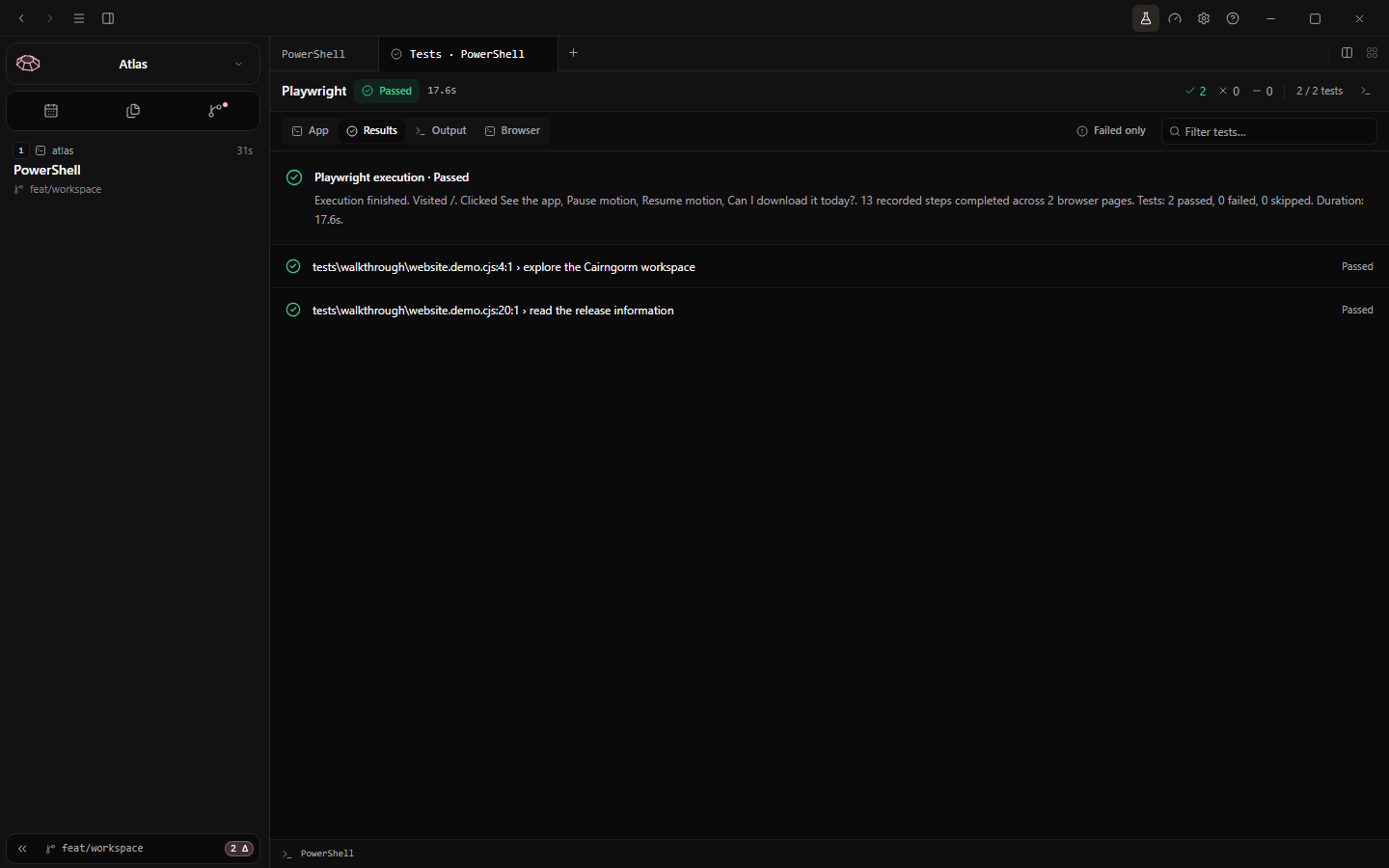
Results: test names/status, search and failed-only filtering.
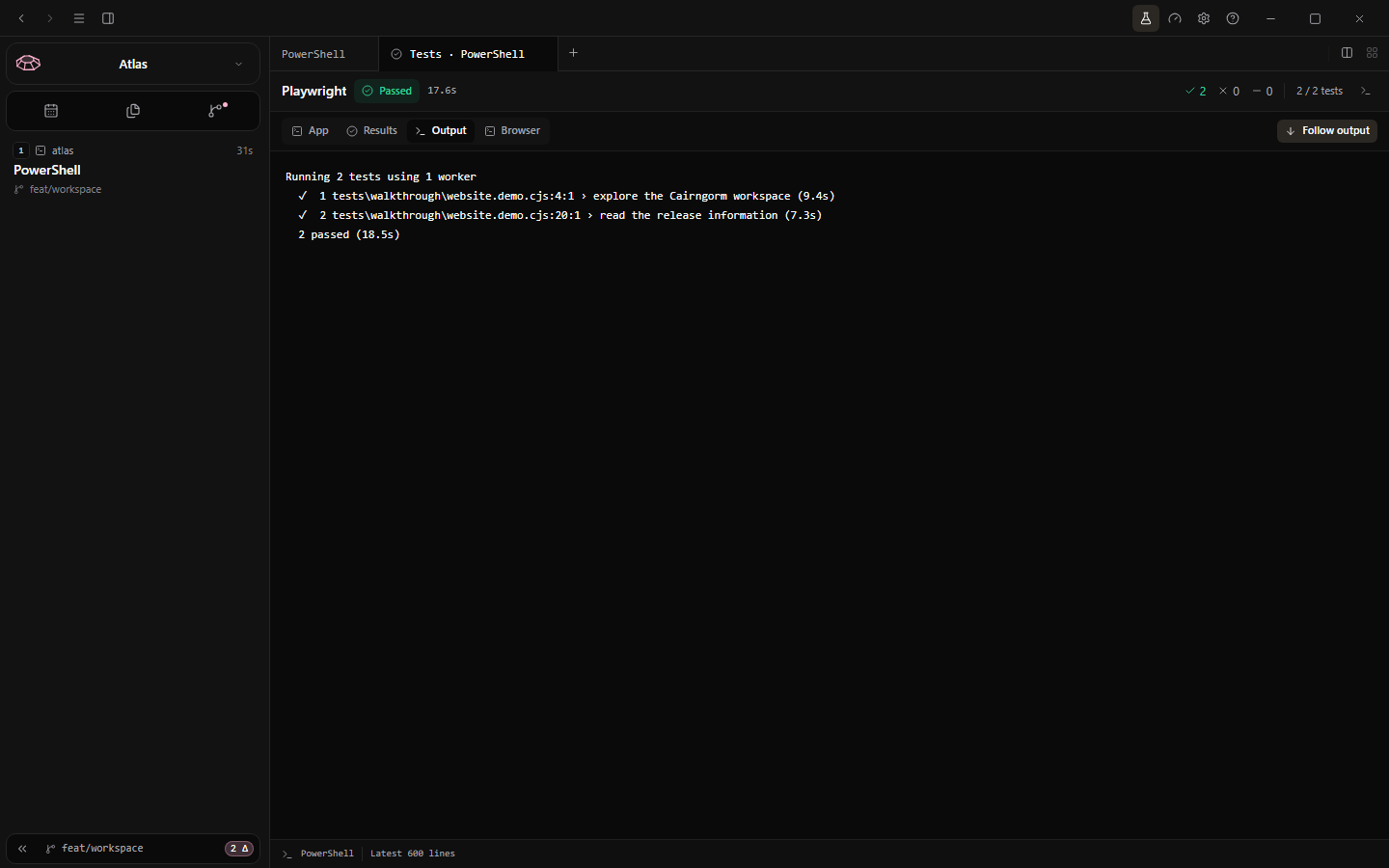
Output: terminal output, including details a parser does not classify.
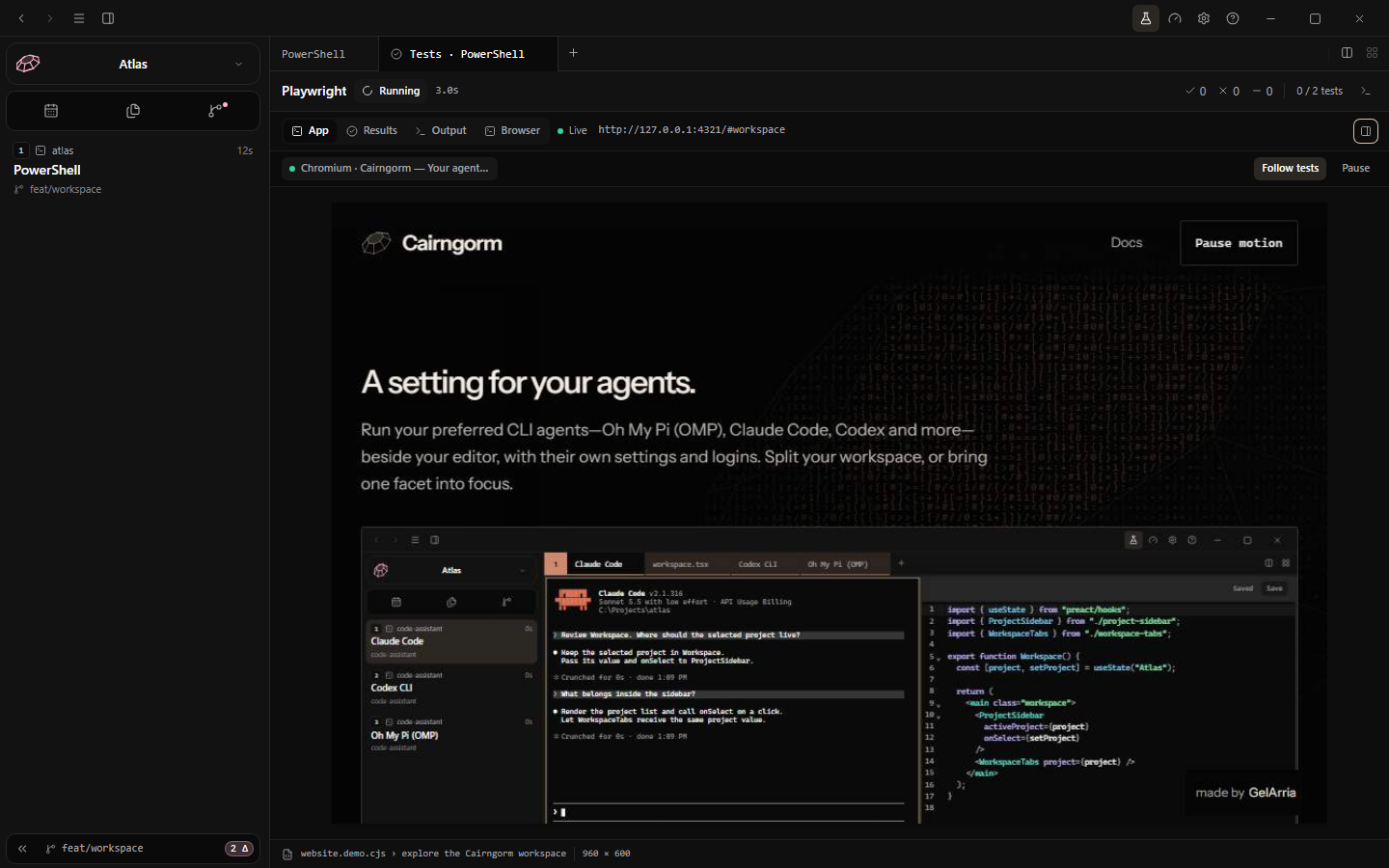
App: available browser observation from an instrumented Playwright run.
Terminal: return to the originating terminal.
Results parsed from a real two-test Playwright subprocess, not fabricated success rows.Output preserves the runner's terminal detail when individual result rows are not enough.
Hide/Show test sidebar changes the walkthrough sidebar's visibility, not a global test-detection switch. A unit-test run does not create a browser view; see Browser observation.
Tools
Browser observation
For instrumented Playwright runs, the Tests pane can show browser frames and a timeline of page/locator actions while the run progresses.
Launch the run from a Cairngorm terminal so it inherits the desktop integration's preload/bridge environment.
Open App in the Tests pane. Frames need the Playwright integration; readable test output alone is not enough.
Use the walkthrough timeline to follow actions. Hide/Show test sidebar gives the browser more space without switching detection off.
Use Results and Output when no frames are supplied or for non-browser runners.
The browser and action timeline come from the instrumented local run.
The action observer avoids recording entered text and uploaded file contents in action labels. Browser frames and terminal output can still contain sensitive information; review them before sharing.
See a real local Playwright run ↗. The demo replays two actual passing website tests as Cairngorm observed them, not simulated result rows.
Tools
Calendar
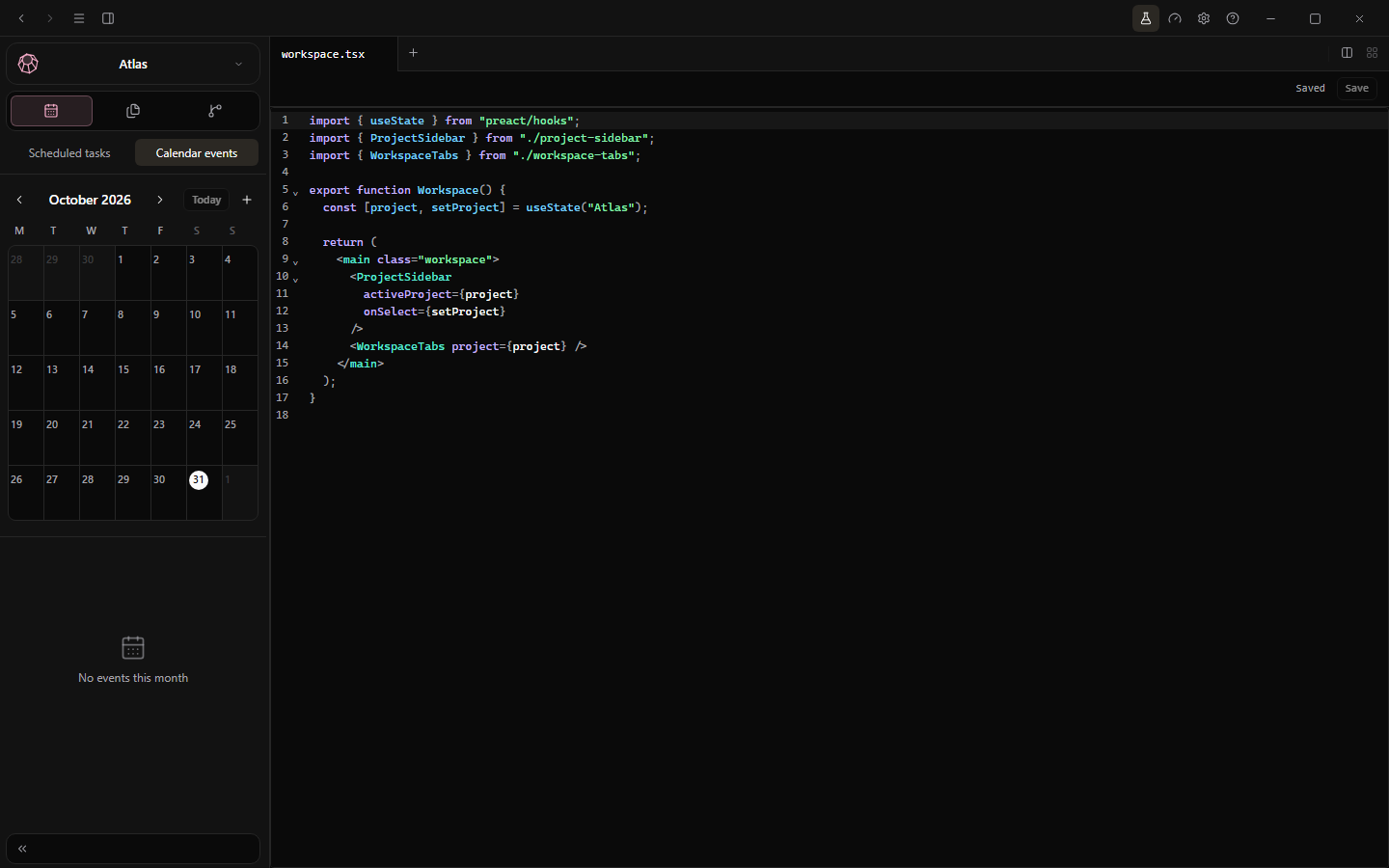
Ctrl+Alt+2 opens Calendar; Ctrl+Alt+1 returns to the workspace. Events belong to the active project.
Navigate months or select Today.
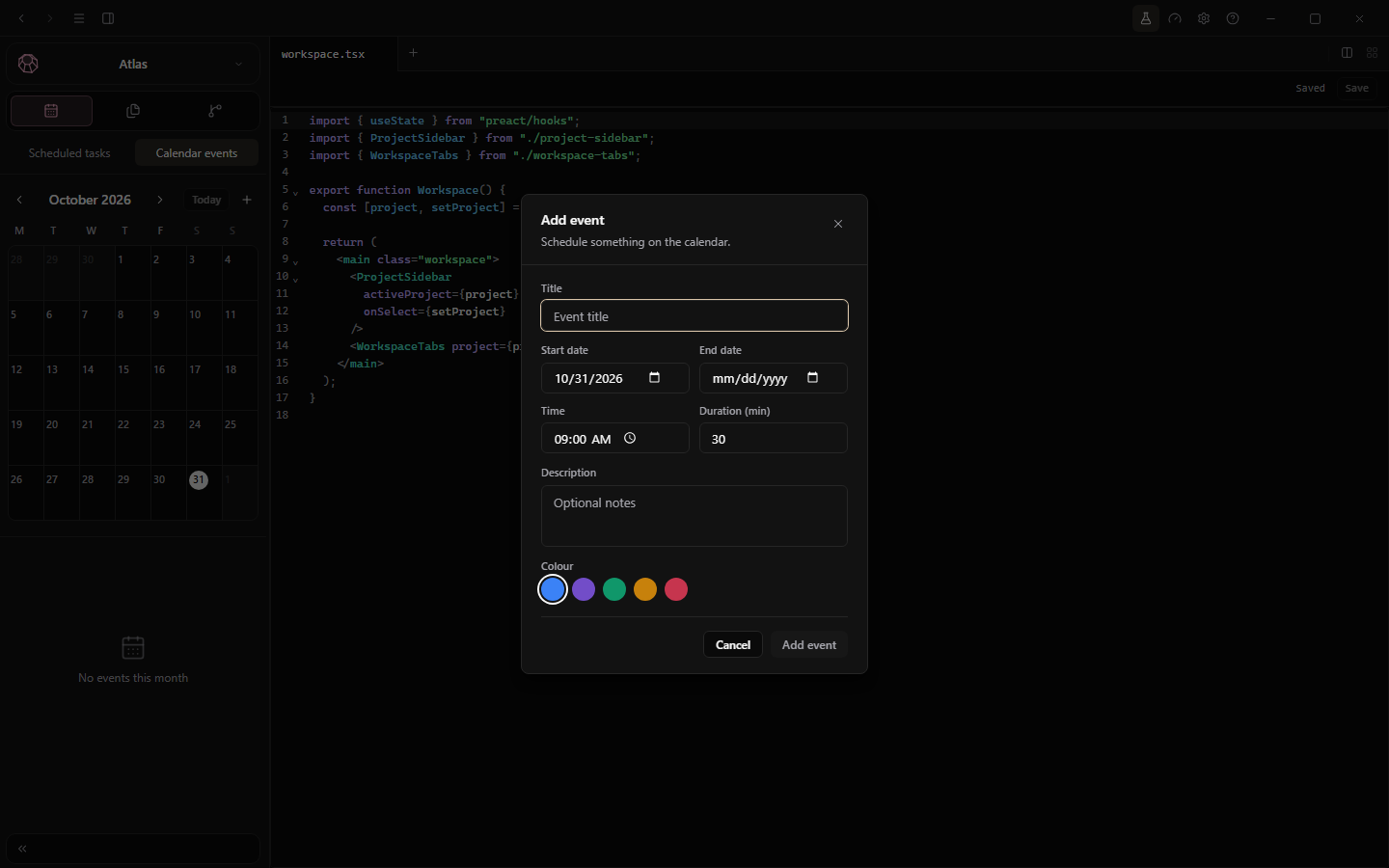
Create an event with a title, start/end dates, time, duration, notes and color. An end date supports multi-day entries.
Select an event to edit it. Its context menu offers Duplicate and Delete.
Calendar events is a separate tab from executable Scheduled tasks.The event form was opened for demonstration and cancelled without saving.
Select Calendar events for local project planning; this does not schedule an agent. The separate Scheduled tasks tab can run a configured agent only after its review and consent flow. Calendar is not cloud-synced.
Tools
Scheduled tasks
Set the task. Inspect the setting before it runs.
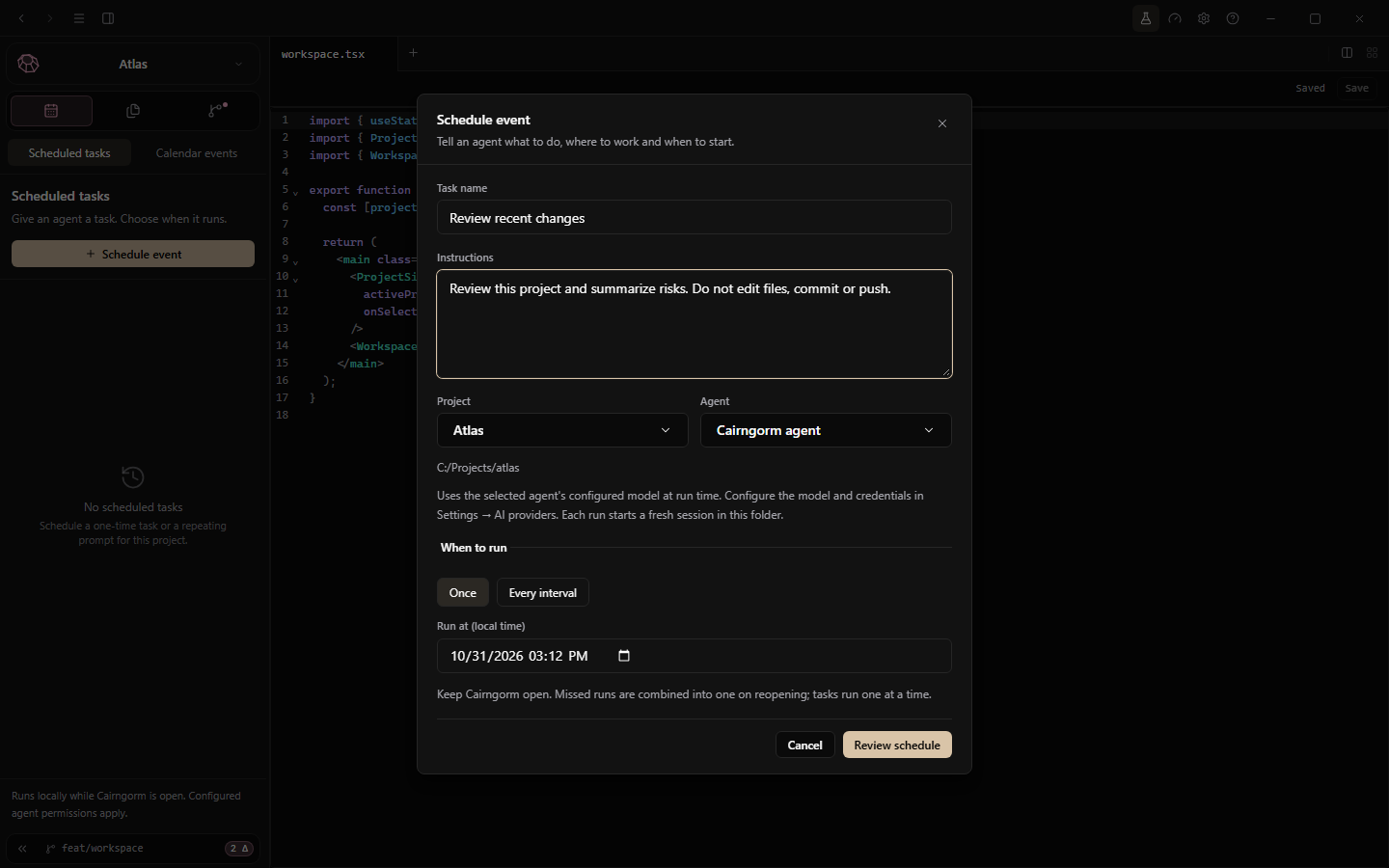
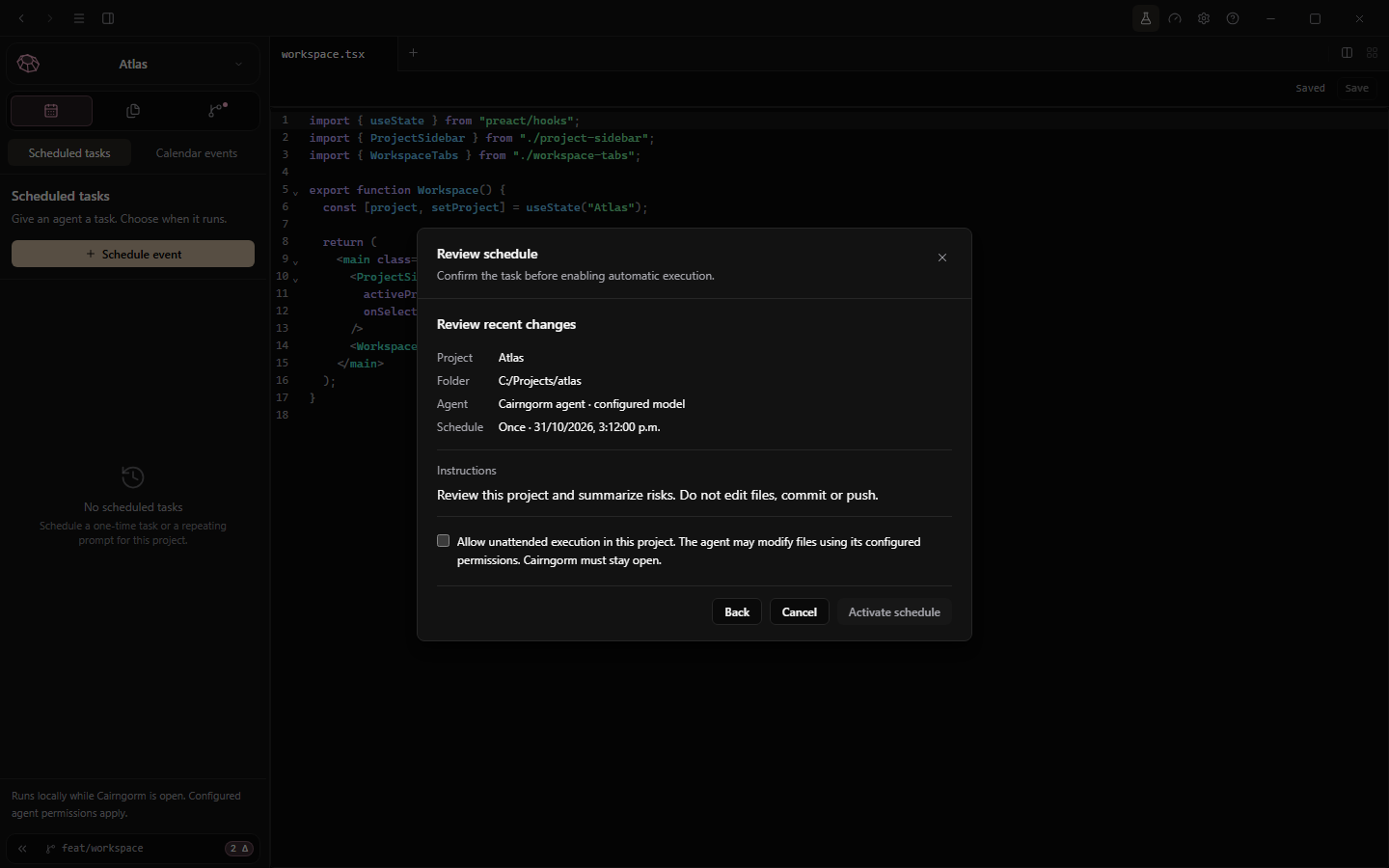
Open Calendar → Scheduled tasks → Schedule event. Select a project, an available agent, a start time and either one run or a repeat interval. Write bounded instructions and choose Review schedule.
Draft the work
The draft identifies the task, instructions, target project and agent. A normal calendar event is only a planning entry; use this form only when you intend the agent to execute.
A draft is not active. The example asks for a read-only review and has not been submitted.
Review and allow unattended execution
Check the project folder, configured model, timing and instructions. Activate schedule stays disabled until you explicitly allow unattended execution. Cancel leaves the draft inactive. The screenshots stop before consent; no schedule was activated for them.
The consent box is unchecked; Activate schedule is disabled. Capture ends here and cancels.
Cairngorm must stay open. This is local scheduling, not a hosted always-on worker. Agent permissions still apply; unattended work may modify files and use provider quota. Back up important work and use bounded prompts. A schedule is not a promise that a task will finish successfully.
Existing schedules expose controls for their current state and a last-run result when available. Inspect that result and your repository, rather than treating a completed timer as a passing check.
Extensions
Plugins & interactive tools
Add another facet without leaving the workspace.
Browse the catalog
Open Settings → Plugins. Search or filter the catalog, inspect a service and enable only plugins you trust. Visual plugins include tldraw, Excalidraw, draw.io and Mermaid; not every tool or MCP server supplies an interactive view. Some services require their own sign-in. The capture uses isolated catalog state, not your real agent configuration.
Browse and inspect first. Catalog state here is isolated from your CLI configuration.
Connect your agent once
Install Node.js or Bun, then choose Connect agents and review the permission request. One shared Cairngorm MCP bridge serves your enabled plugins; you do not need a separate CLI entry for every plugin.
Enable the plugin and complete its sign-in if required. Connecting agents and enabling a service are separate steps.
Start or restart the agent inside a Cairngorm terminal. Agents running in external terminals receive no Cairngorm plugin tools or panels.
Let the client read the MCP tool catalog and expose its tools to the model, directly or through discovery. Then ask for the task; enabling a plugin does not force the model to call it.
After installing another supported CLI, choose Check agent connections. This check is explicit, not a startup action that silently restores a connection you removed. Configuration edits preserve other servers and keep a backup.
Use another MCP client
Choose Connect another MCP client, enter a name, select the CLI's existing absolute configuration path and choose the matching supported JSON/JSONC or TOML layout. Registering does not edit that CLI configuration or run the client; enable its connection with the switch to add Cairngorm's own entry. It does not require a Cairngorm-specific extension in the CLI. Disconnecting or removing a registration does not delete an unrelated server entry.
Alternatively, Other MCP clients shows the standard bridge entry to merge into your client's configuration. Keep its command and arguments as generated on your machine; start the client from a Cairngorm terminal and make sure its model can discover the tools.
Read the connection status
Configuration, contact and model visibility are different
Status
What to check
Restart required
The bridge is configured but has not been verified by a live agent session. Start or restart the agent in Cairngorm.
Connected
The client recently completed the MCP handshake and catalog read. This confirms MCP access, not that the model sees or will use a tool.
Configured
The entry is saved, but its last verified contact is no longer recent. Check the displayed last-contact time.
Refresh required
The client has not read the updated catalog. Reload its tools or restart it if automatic updates are not supported.
Plugin changes announce tool-list updates. For Pi, use /reload when the running session needs a refresh; for other clients use their reload or restart flow. The read-only MCP resource cairngorm://plugins describes current enabled capabilities, but tools/list remains authoritative for tools that are actually callable. A service can still be offline or require sign-in.
Let an agent start, then refine by hand
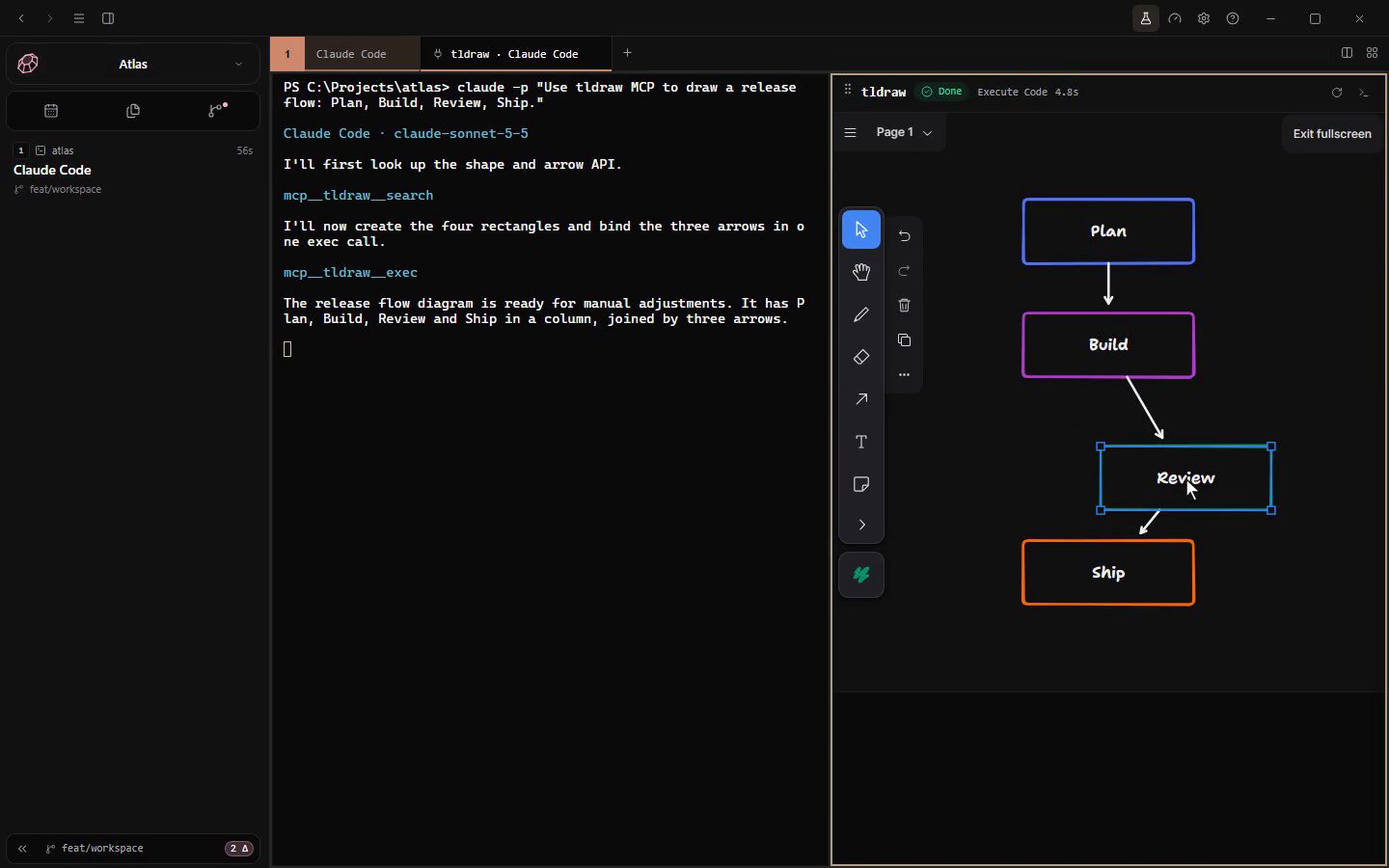
The tldraw example shows a genuine Claude Code prompt followed by search → exec MCP calls. Its interactive canvas opens beside the terminal. After the agent finishes, move a node or refine a label with the cursor. Not every MCP server supplies an interactive view.
A frame from the real agent-driven tldraw demo. The model generated the diagram; cursor edits follow its completion.
Keep each project's canvas separate
Current source builds isolate the upstream MCP session and browser storage by plugin and source terminal. Different terminals receive different storage origins, including when they belong to different projects. The same separation applies to other plugins hosted through the bridge. Remounting a view does not replay its tool input. Storage isolation does not guarantee that a third-party plugin reloads its previous canvas; tldraw reopened empty during the browser capture's project-switch check. Save or export important work before switching.
This does not duplicate a remote document that you explicitly open in both projects. Plugin panels are temporary workspace tabs, not files saved across app restarts; export important work or use the service's own save controls before closing. Separation does not recover content already overwritten in an older build.
Connection and isolation details above describe the current source. Check Current development changes before comparing builds. The Plugins demo shows consent, sample custom-client registration and connection states, but does not verify cross-project canvas restoration.
Plugins can contact external services, expose tools and render third-party content. Read their permissions and sign-in requirements. The tldraw screenshot comes from a recording that used the real server/view and actual model execution with bridged native transport on a localhost development origin. It does not validate licensing on the native gateway's origins. The website replays that canvas in the app's plugin pane as a recording and makes no model requests.
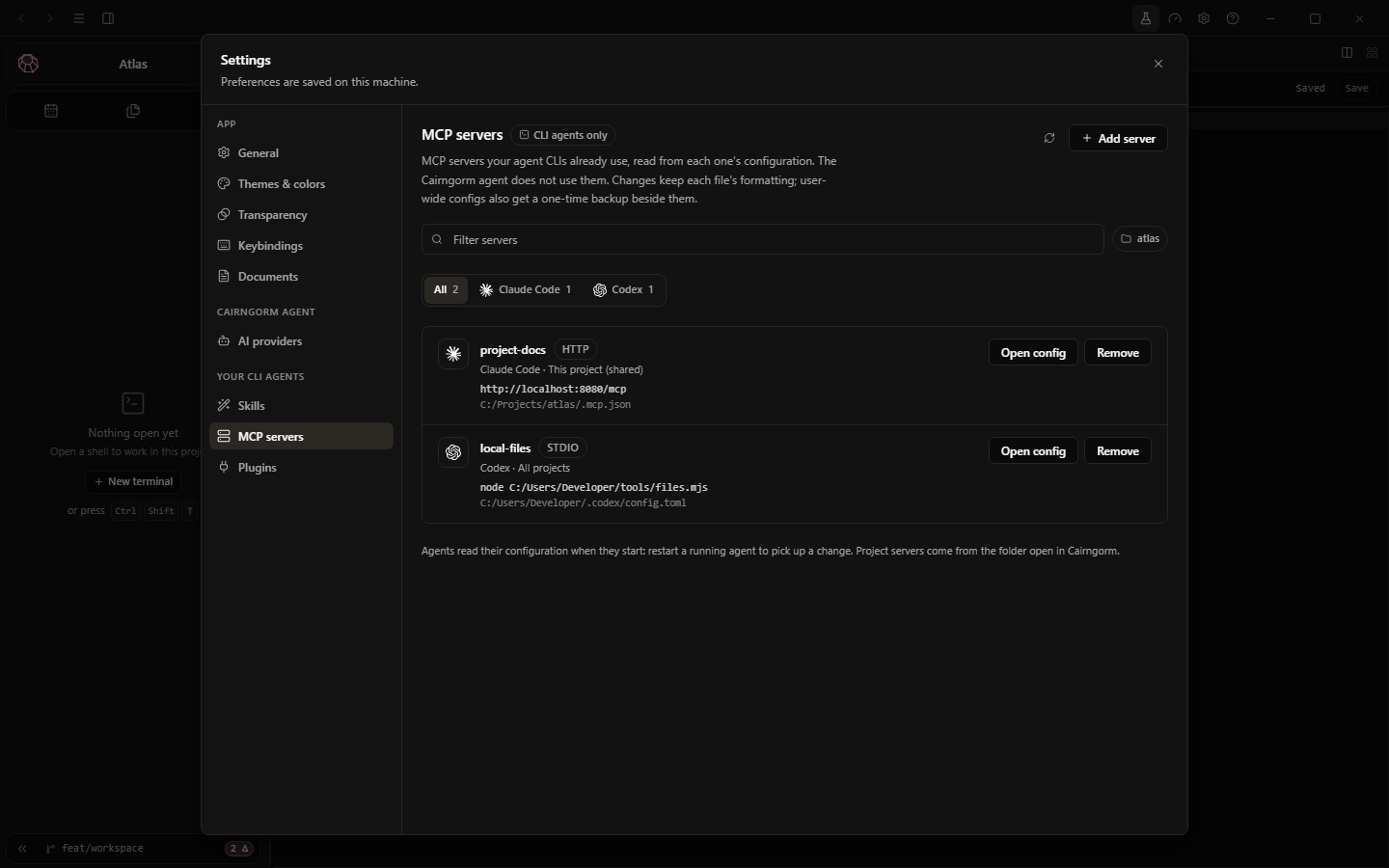
Open Settings → MCP servers to inspect servers from supported personal and project agent configurations. Filter by name or target; check the agent, scope and configuration path before editing.
Read the existing connections
A local command uses stdio; a remote URL contacts a server. An inventory entry is configuration, not proof that the service is reachable or authenticated.
This inventory is separate from Plugins & interactive tools. Use Settings → Plugins to connect the shared Cairngorm bridge, register another MCP client or inspect plugin connection status; adding an arbitrary server here does not make it a visual plugin.
Read the target and scope together. Sample inventory does not imply a reachable live connection.
Draft a connection
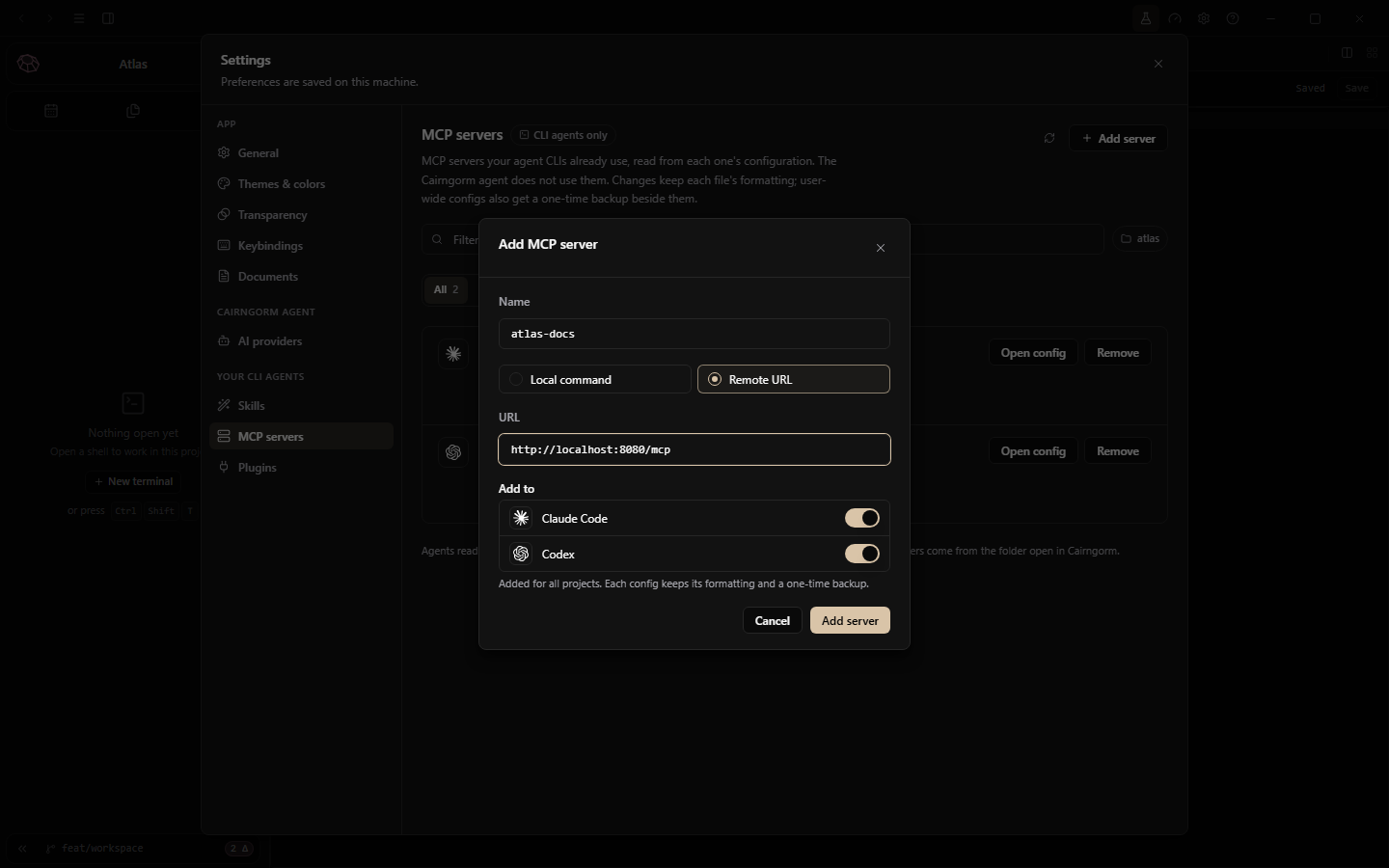
Choose Add server and a unique name.
Choose a local command or remote URL and inspect the target.
Select which supported agents receive it. Review the destination and scope before saving.
Restart the affected agent so it reloads configuration.
A remote-server draft, cancelled without adding the connection.
Only run commands and connect servers you trust. User-wide edits keep a backup; this is not a guarantee that every project configuration is backed up. The example below is a cancelled remote-server draft, with no actual configuration changes.
Extensions
Skills
Keep your craft close, and its instructions readable.
Find your personal skills
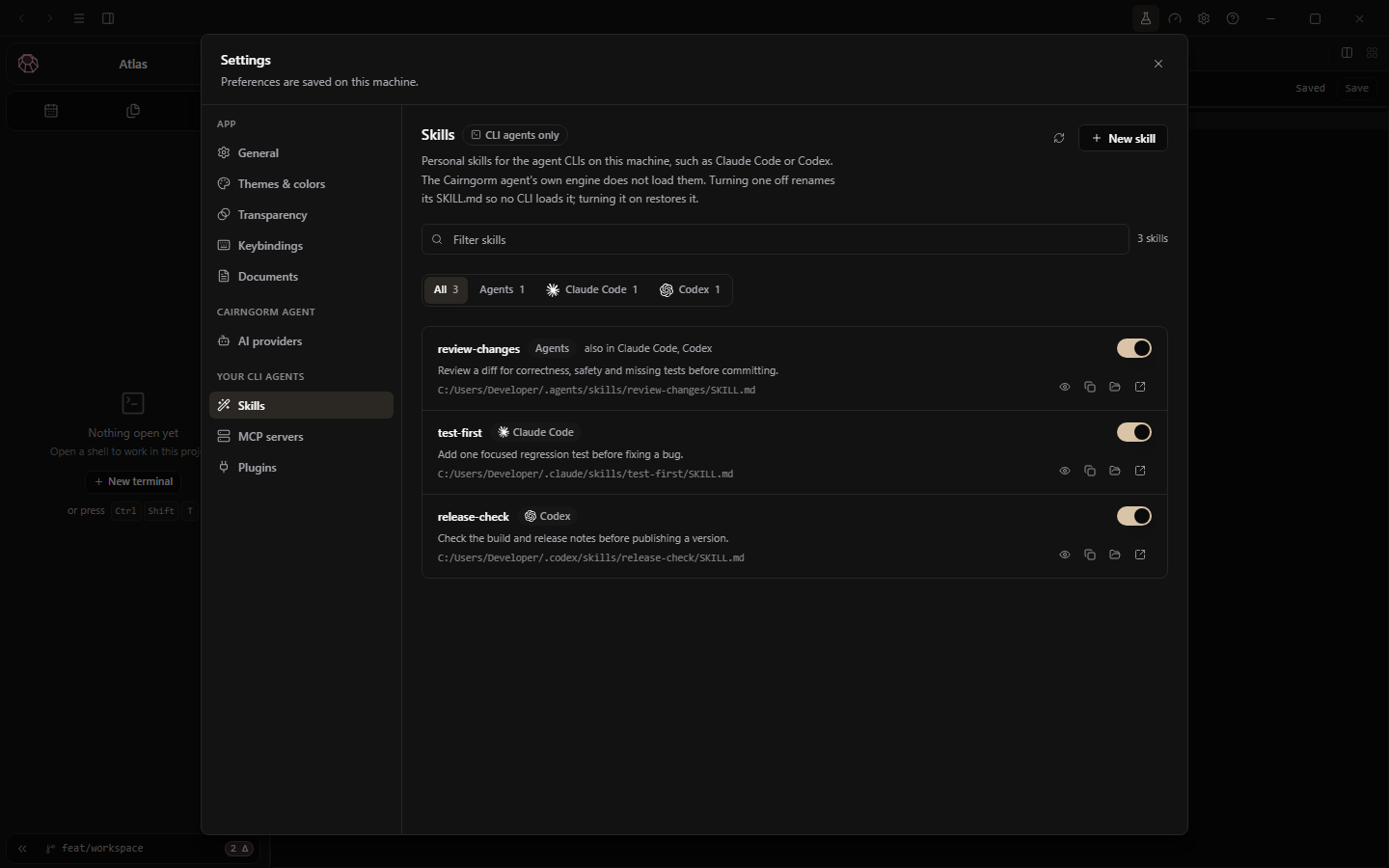
Open Settings → Skills. Filter the list or choose an agent/harness to see its discovered skills and paths. Shared skills can appear with links to multiple agents.
Shared and agent-specific sample skills in the same inventory.
Read before using
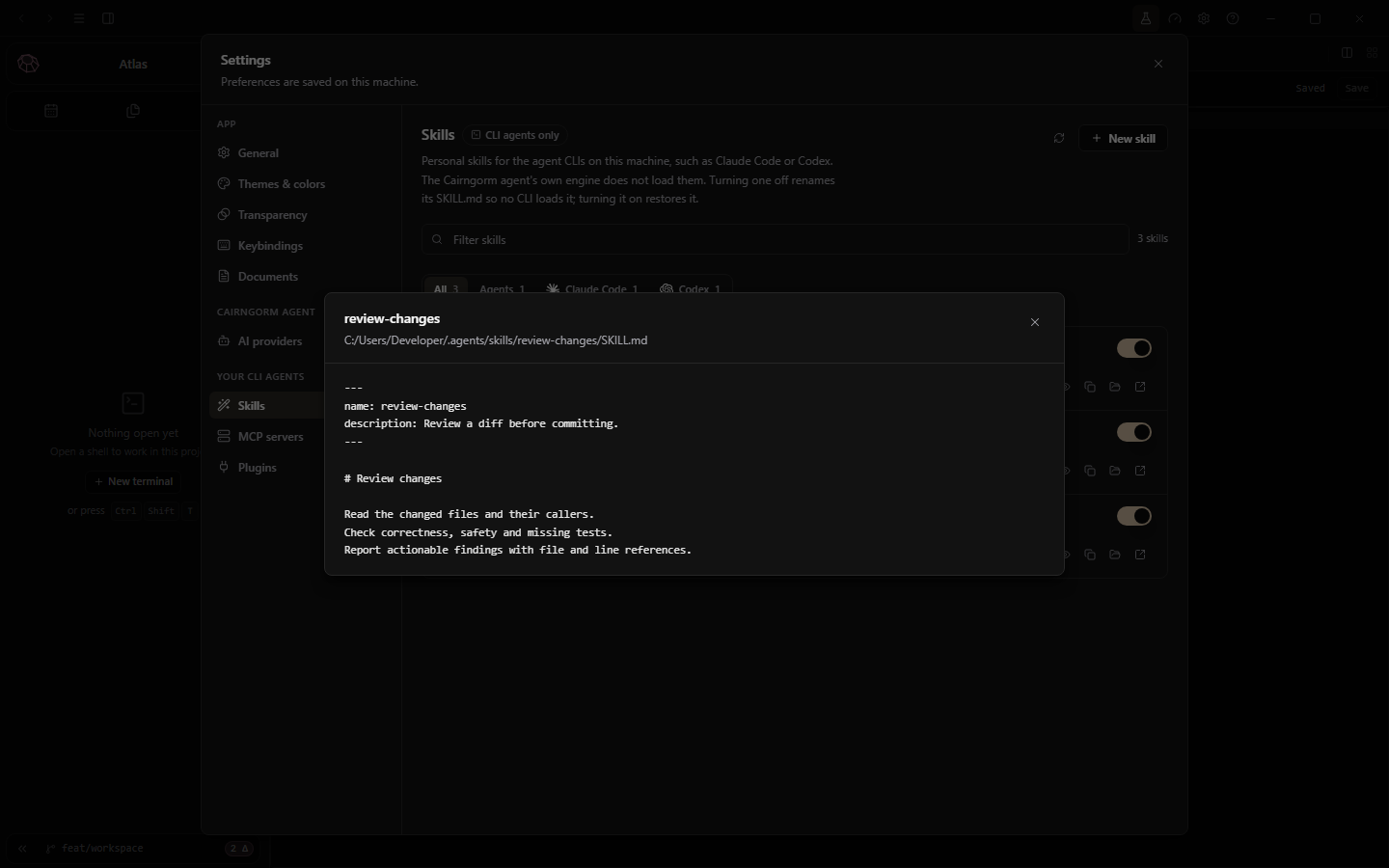
Choose Preview SKILL.md to inspect the file before trusting its instructions. A description helps an agent decide when to use a skill; it does not prove the skill is safe or correct.
Read the exact instruction file before enabling it.
Disable, restore or draft
The toggle disables a discovered skill by renaming its instruction file to SKILL.md.disabled; re-enabling restores SKILL.md. It does not delete the skill folder. New skill drafts a name, description and instructions for the selected destination.
Real toggles and creation change files on your machine. Check paths first and restart/reload the agent as required. The website examples use sample skills, restore toggles and cancel drafts without changing your files.
SDK
Document provider SDK
Teach Cairngorm a file format without rebuilding the app.
SDK v1 is for document providers: HTML/JavaScript editors or viewers rendered in isolated panes. Cairngorm owns snapshots, versions, lifecycle and saving; your provider interprets the bytes and renders its view. It is not an agent runtime SDK or an API for controlling installed applications.
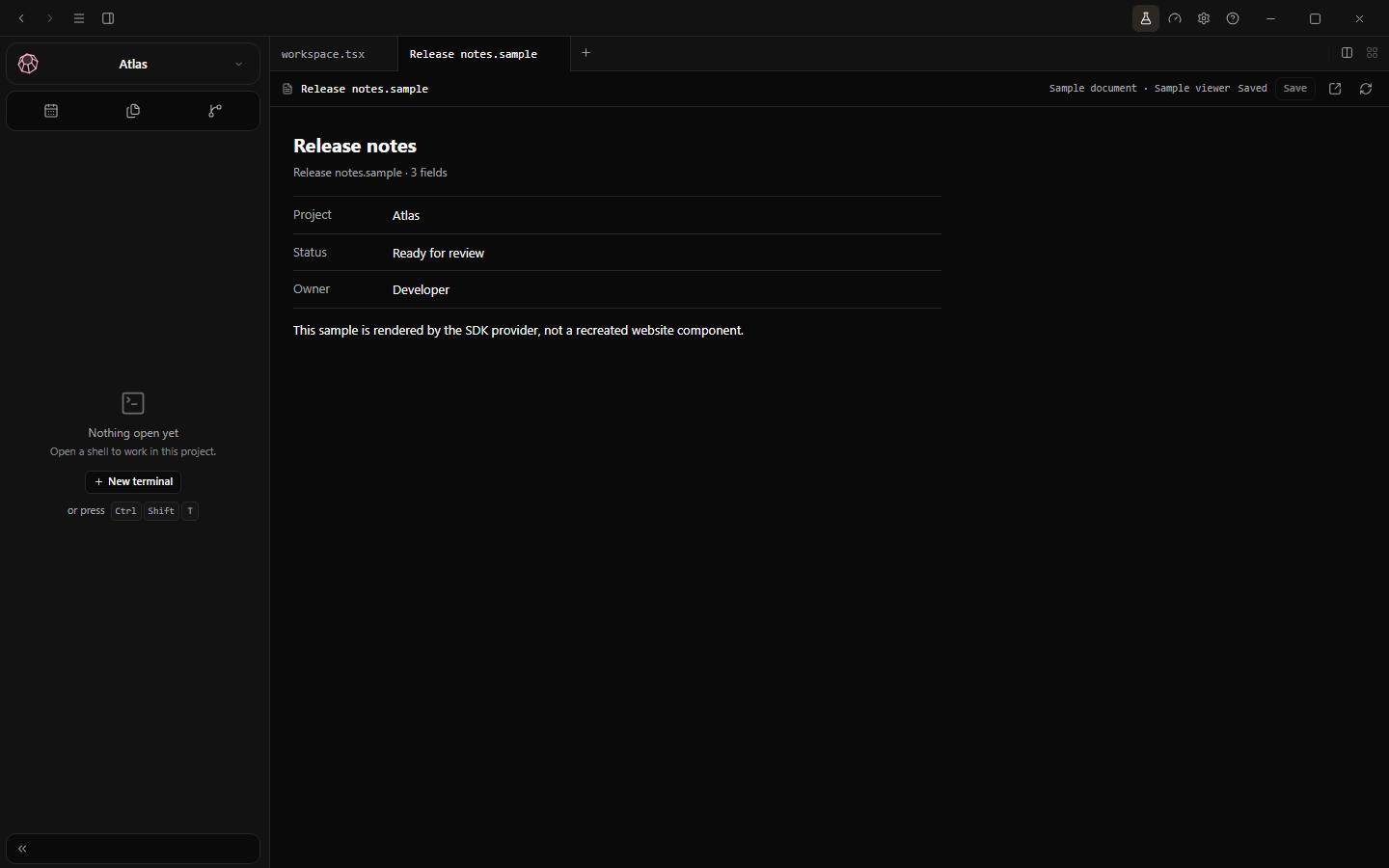
The SDK's real Sample viewer, using isolated sample document data. No production file was edited.
In an app source checkout, copy the complete example at src/documents/sdk/sample-provider/ and the generated types at src/documents/sdk/generated/document-sdk.d.ts. The SDK source is src/documents/sdk/document-sdk.ts; npm run build:document-sdk regenerates its runtime, declarations and sample. These are source-checkout paths, not files installed by this website.
Your index.html needs a <main id="document"></main> and a module script loading main.js. Compile TypeScript with tsc or a bundler, keeping ./_cairngorm/document-sdk.js external. Cairngorm serves that runtime beside each provider so it always matches the host version. Report ready() within 15 seconds.
Install and iterate
Use Settings → Documents → Add an editor…, inspect and approve your folder, then open a matching file. Rebuild and reinstall after changes; the installed provider is a verified private copy, not a live development folder. See SDK reference for the manifest and lifecycle, and Agent operations & saving for edits.
SDK
SDK reference
Declare the smallest capability your format needs.
Use a lowercase reverse-DNS ID. cairngorm.* and app.cairngorm.* are reserved. Declare up to 32 extensions; built-in text/code formats such as .md, .json, .ts and .ipynb cannot be claimed. A file type can supply a local template, such as blank.xlsx, for agent creation.
view is required; edit is optional. Unknown capabilities and permissions are refused. maxBytes defaults to 16 MiB and cannot exceed 32 MiB. Installation accepts at most 512 files and 32 MiB; symbolic links are refused and dot-entries are not installed.
Host API
Available after connect()
API
Responsibility
document, context
Name, MIME type, size, content version; current theme, colors and pane size.
read() / readText()
Read the current snapshot as bytes / text; read again after document changes.
ready(), reportError(error)
Finish loading or show a recoverable pane error.
onDocumentChange(fn)
Re-render a reloaded snapshot.
onContextChange(fn)
Apply updated theme, colors or pane geometry.
onTeardown(fn)
Release view resources when closing, within two seconds.
capabilities.edit, setDirty(bool)
Check session editability and report unsaved changes.
onSave(fn), onSaved(fn)
Return bytes/text to save, then observe the committed new version.
onOperation(name, fn)
Implement a declared agent operation and return JSON.
Isolation is part of the contract
Each provider/project uses its own loopback origin inside a sandboxed iframe and relay frame. Scripts, styles, fetches and workers are limited to the provider's own files. No nested frames, forms, popups or downloads; WebRTC constructors are removed. Providers never receive a disk path, Tauri APIs, arbitrary other files or direct save access. Render untrusted document data as text, not HTML.
Approved editors and their file types are visible to the user in Documents settings.
SDK
Agent operations & saving
The provider prepares a change. Cairngorm owns the write.
Declare typed operations
Add up to 16 entries under operations in your manifest: a lowercase hyphenated name, a description and an object inputSchema of at most 8 KiB. Register the same name with host.onOperation. Validate arguments in the view; the schema is not a substitute for validation. Return a JSON result, and call setDirty(true) after modifying state.
// Register only when the manifest declares edit.
host.onSave(() => serializeDocument()); // string or Uint8Array
host.onSaved(() => host.setDirty(false));
// After a validated user or agent edit:
host.setDirty(true);
serializeDocument() is your format's serializer, not an SDK function. The sample-provider/src/main.ts example implements list-fields and set-field, including unknown-field validation.
Agent flow
The agent asks for file access and calls cairngorm_create_file (a provider template is required) or cairngorm_open_file.
Cairngorm authorizes the file, opens its snapshot in the terminal's project and returns the provider's operations.
The agent calls cairngorm_document_operation with the operation name and arguments. The document must already be open.
With save: true, Cairngorm asks for save approval and saves afterward, but refuses if the user has unsaved edits in that pane.
Conflicts stay visible
Save checks the disk version against the original snapshot, retains a private backup (up to five per document, bounded by 200 total), writes a sibling temporary file and replaces the original. A changed or locked file leaves the original intact and the pane dirty. Do not clear dirty state before onSaved. Reload or provider switching asks before discarding unsaved changes.
The view edits a snapshot. Save and agent-operation dispatch remain host responsibilities.
File and application access permissions are separate from a provider's edit capability. Never request extra host permissions through a provider manifest or bypass the host to write a file. For scriptable desktop apps use the application tools, not this SDK.
Configuration
Choose your AI setup
Keep the solution you prefer. Cairngorm supplies the workspace, not a mandatory model subscription.
Three ways in
Your installed CLI: run Pi, Oh My Pi (OMP), OpenCode, Claude Code, Codex or another terminal tool with its normal command. It keeps its own login, settings and provider/model choice. Terminal guide.
Your API connection: choose a model developer, inference host or gateway that exposes the compatible API. Configure its endpoint, model and key/environment variable. Provider/model guide.
Your local server: use a compatible endpoint on your machine or network, with the model available on that server. It need not be hosted by a model company.
Cairngorm does not export logins, copy tokens or transfer subscriptions. A CLI uses its existing authentication; optional integrations save executable/configuration paths and the chosen service. API credentials are separately supplied by you. Subscriptions do not automatically grant API credit.
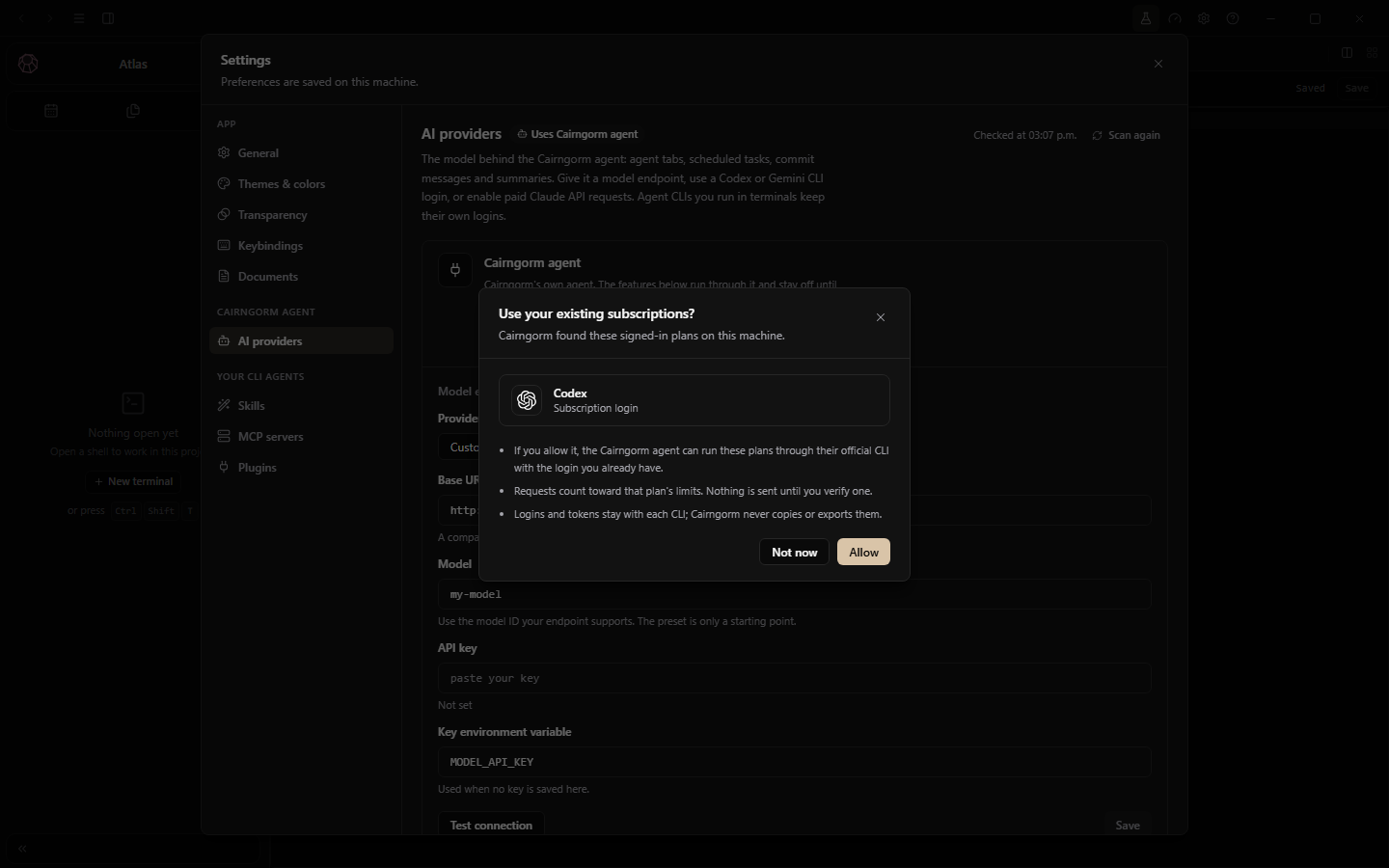
Detection is not consent. No subscription verification is performed to capture this screen.
Optional existing CLI integrations
The current shortcuts for commit assistance are Claude Code (paid API billing) and Codex (an explicitly verified login). They are not the full list of CLIs the terminal can run. Install/sign in using the tool's own guide—Claude Code or Codex CLI—then check the installed executable outside Cairngorm. Reopen the app after PATH changes.
Open Settings → AI providers. CLI integrations appear below the Cairngorm agent endpoint. The subscription consent flow applies to Codex; Claude has a separate API-billing acknowledgement. Cairngorm asks Use your existing subscriptions?; choose Not now to leave them unused, or Allow before verifying one.
Use Scan again, then Configure on the subscription row. Leave Binary path empty for automatic detection, or enter the executable path/command.
Leave the configuration path empty for its default, or choose your existing CLAUDE_CONFIG_DIR / CODEX_HOME folder. These are paths, not keys.
After editing paths, use Save paths & scan. A path change deselects the CLI for commits.
Use Verify & use when you want that subscription selected. If you previously declined, Cairngorm asks for consent again before verifying. Verification sends a short model request and may consume quota.
Detection is not verification
Status
Action
CLI not found
Check installation, PATH or Binary path.
Sign-in needed
Sign in with the same executable and configuration folder.
Login detected
Verify model access before selecting it for commits.
Check failed
Read the error, check paths and scan again.
API key required (Claude)
Supply ANTHROPIC_API_KEY and approve paid API billing separately; a subscription login is not sufficient.
Scanning reads local login status without consuming model quota or copying tokens. Verified Codex can power commits and the native agent. Claude Code selection powers commits through paid Anthropic API billing, not a Claude Free, Pro or Max subscription; the native agent otherwise uses the API provider. Set ANTHROPIC_API_KEY in Cairngorm's environment, scan again, and type I understand in the separate billing-consent dialog before verification. No key or acknowledgement is needed just to run your own Claude Code CLI manually.
The model, its developer and the service running it do not have to be the same choice.
A connection can be a model company's API, a hosted inference service, a gateway routing several providers, or a server you operate. Model families such as Qwen, Llama, Gemma, Mistral and DeepSeek can be offered through different services; use the exact model ID that your chosen endpoint supports.
Cairngorm's preset list is not an exhaustive company or model catalog. Custom endpoints use the OpenAI-compatible API format—a protocol requirement, not an OpenAI account requirement. Native-agent streaming and tool use still depend on the endpoint/model's features. A successful model-list check alone does not verify those features.
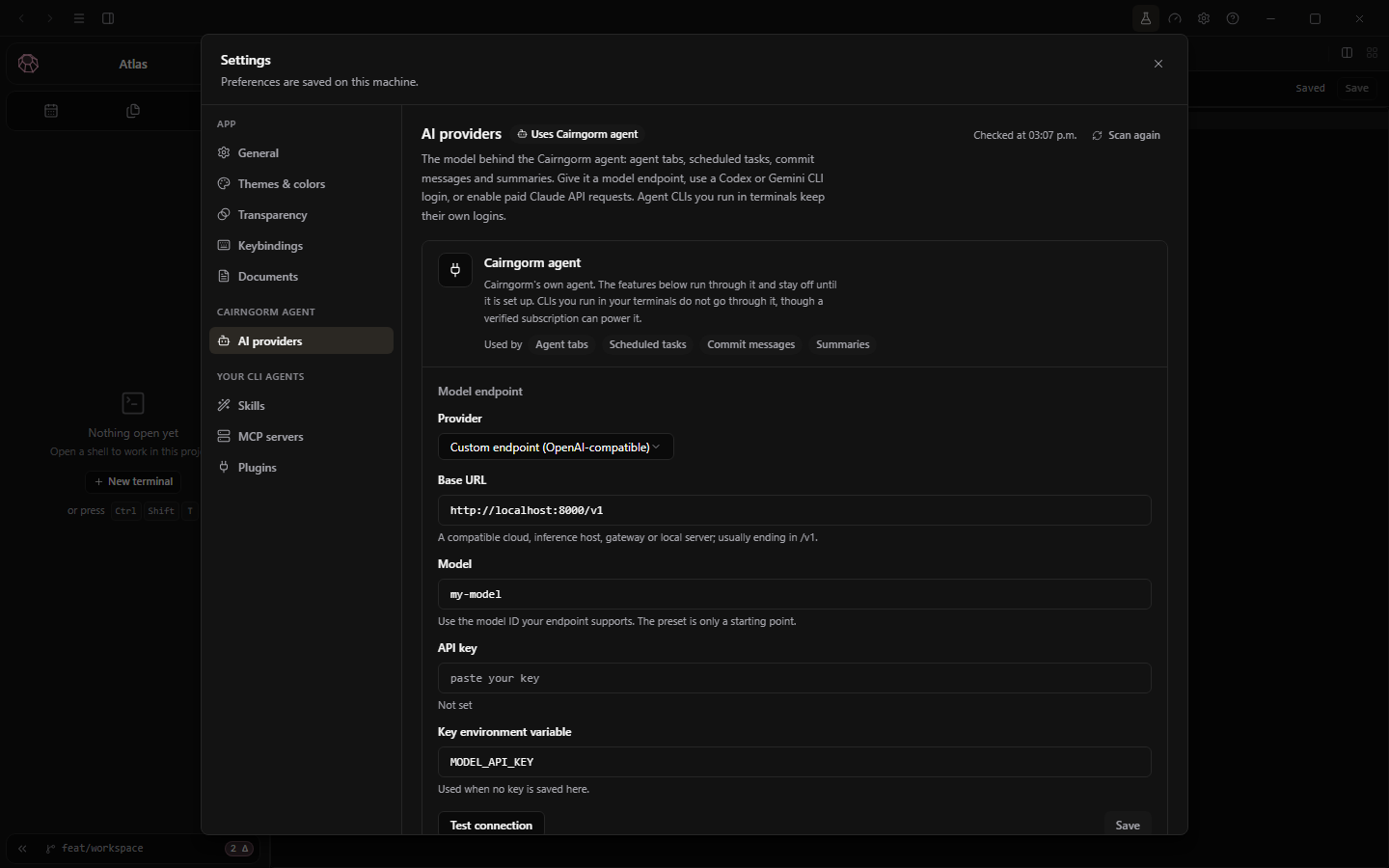
Open Settings → AI providers → Cairngorm agent → Model endpoint.
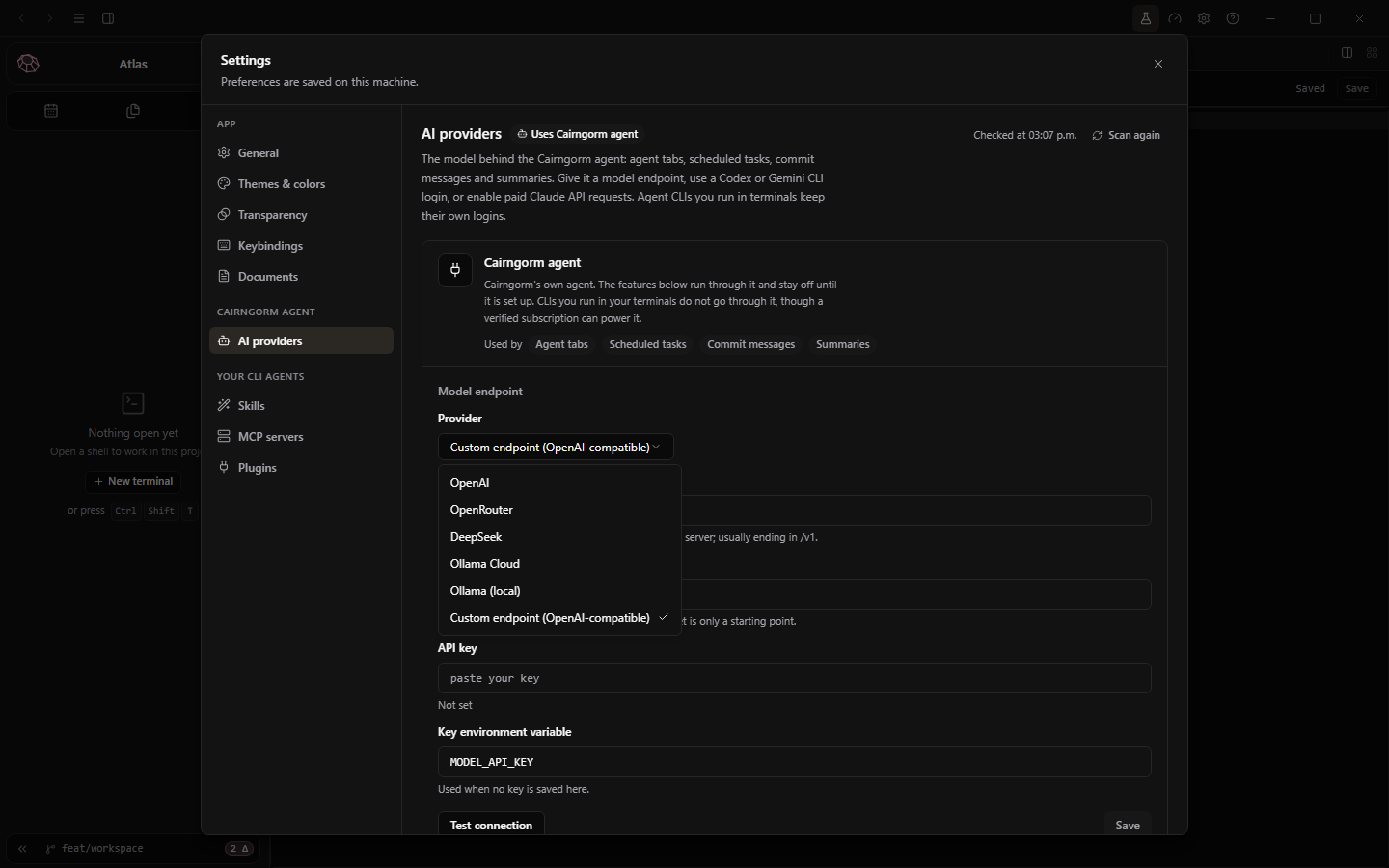
Choose a preset (OpenRouter, DeepSeek, Ollama Cloud/local or OpenAI), or Custom endpoint (OpenAI-compatible) for your preferred service.
Check Base URL and use a model ID supported by that server. Presets fill fields; they do not install models.
Supply a key or name a Key environment variable available to the app.
Use Test connection to contact the endpoint/check the model list, then Save. New native-agent sessions use the saved configuration.
The central Cairngorm agent endpoint. Sample fields contain no real key.Presets fill connection fields; they do not install a model or imply a successful connection.
Local Ollama
The preset uses http://localhost:11434/v1 without requiring a real API key. Start Ollama and make the chosen model available first. Other local/infrastructure servers can use Custom with their compatible API URL and model ID; they are not limited to Ollama. A reachable web page alone is not a compatible model endpoint.
Keys and provider selection
An empty key input preserves the saved key. Remove deletes it on save. The named environment variable supplies a key when none is saved. See Settings & local data for the configuration location.
Saving API fields does not replace a CLI selected for commits. Choose Use this endpoint instead to change that selection.
API usage is separate from a CLI subscription. Requests use the chosen provider's billing and data policies. Local workspace execution does not mean your model runs locally.
Configuration
Themes & colors
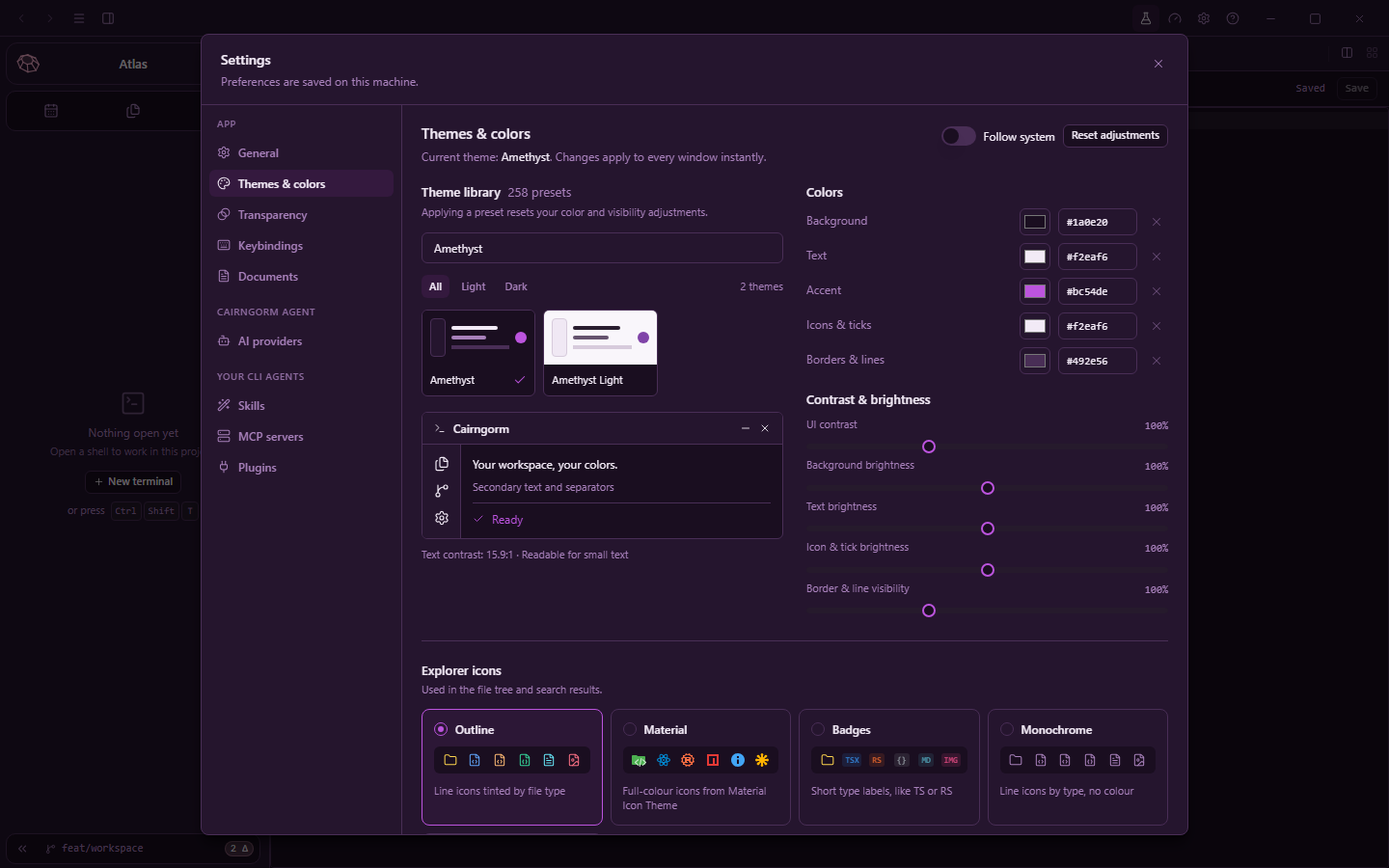
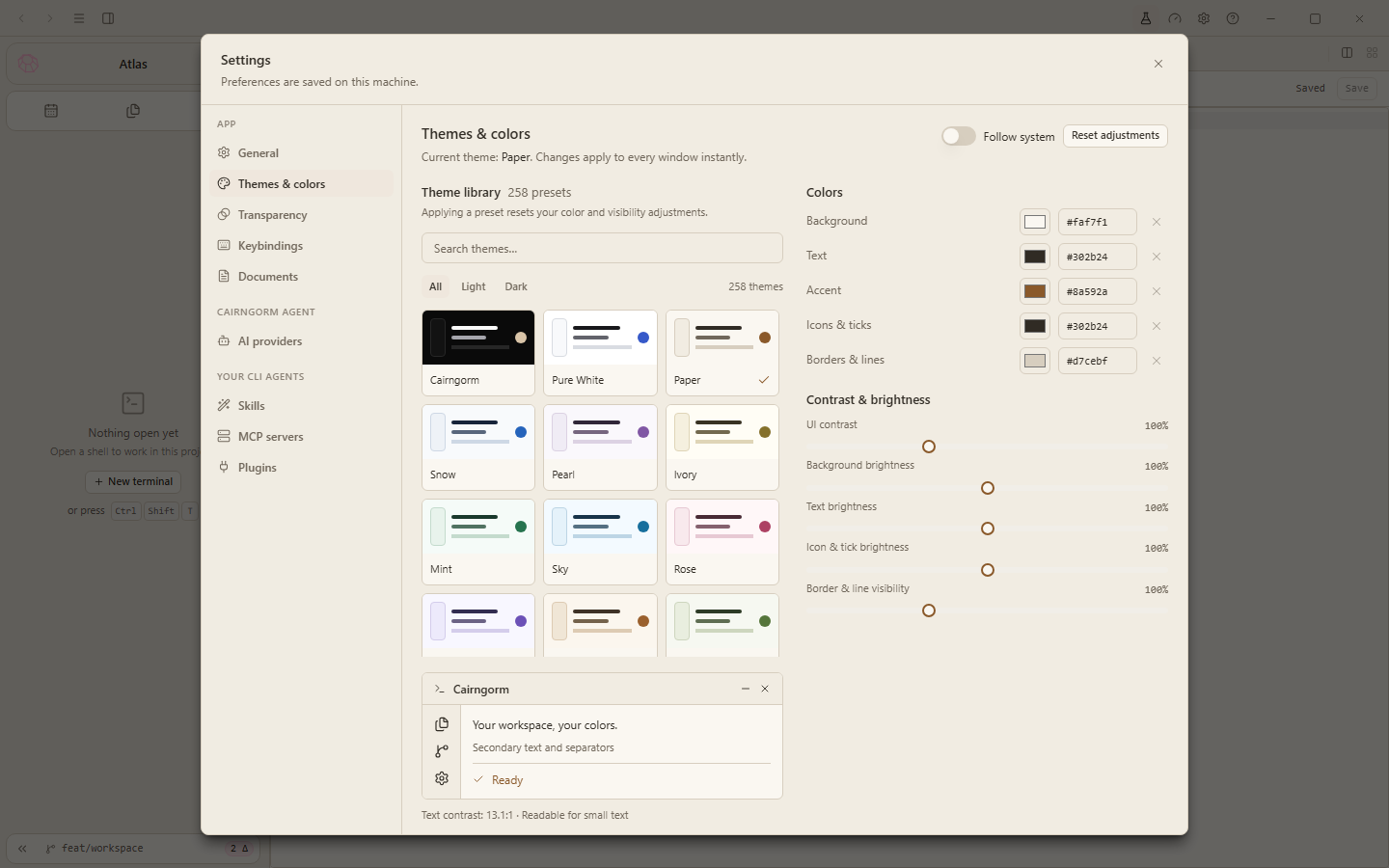
Open Settings → Themes & colors. The library is searchable and filterable by Light/Dark, including Cairngorm, Paper, Midnight, Nord and Tokyo Night, plus gemstone presets such as Diamond, Blue Topaz, Emerald, Ruby and Amethyst. Applying a stone theme changes the whole interface; project gem cards remain a separate setting.
Follow system: follow the OS theme mode instead of a fixed preset.
Colors: Background, Text, Accent, Icons & ticks, Borders & lines; use a picker or hex value.
Adjustments: UI contrast, background/text/icon brightness and border visibility.
Preview: inspect secondary text and separators. The app flags small-text contrast below 4.5:1.
Reset adjustments: return to defaults. Applying another preset also resets custom color/visibility adjustments.
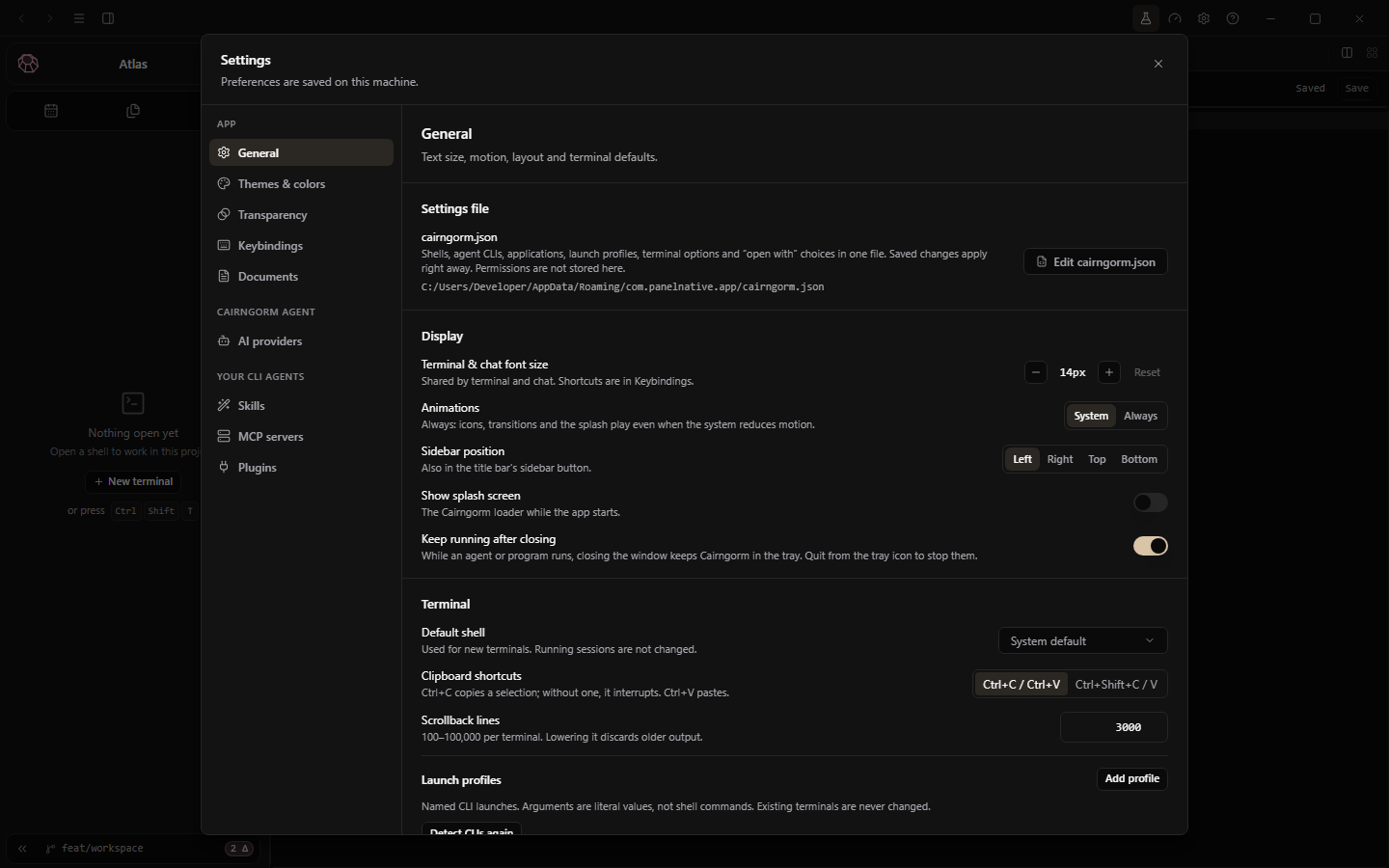
Changes apply immediately across app windows and are saved locally. General settings control terminal/chat font size, sidebar position, startup splash and System/Always animation behavior.
Amethyst from the gemstone theme library. The personalization demo also shows Diamond before returning to Paper and Midnight.Paper is a light preset, not a separate app interface.
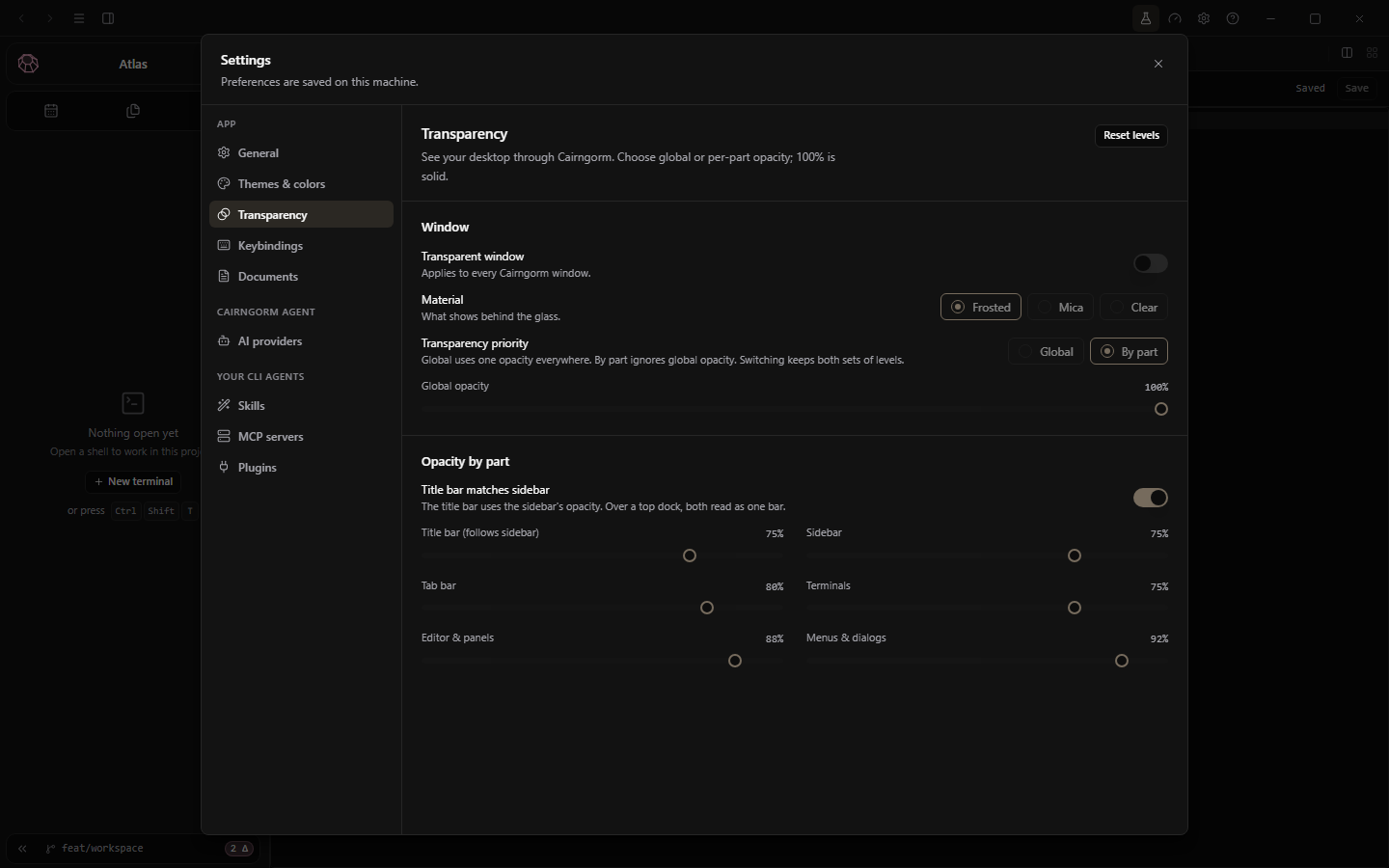
Open Settings → Transparency. Enable Transparent window to control the overall opacity and individual surfaces: title bar, sidebar, tab bar, terminals, editor/panels and menus/dialogs.
The controls are real. A browser screenshot does not demonstrate native desktop blur.
Keep the text readable
Title bar matches sidebar shares those opacity levels. Reset levels restores the default levels. A value of 100% is solid; inspect contrast over your actual desktop before choosing a lower value.
Window material depends on the platform
Frosted, Mica and Clear describe native window materials; Mica is a Windows 11 effect. Linux shows the desktop without blur. Windows Acrylic can lag while dragging or resizing. These browser-captured settings demonstrate the controls, not a verified native glass effect or support on every OS.
Configuration
Project appearance
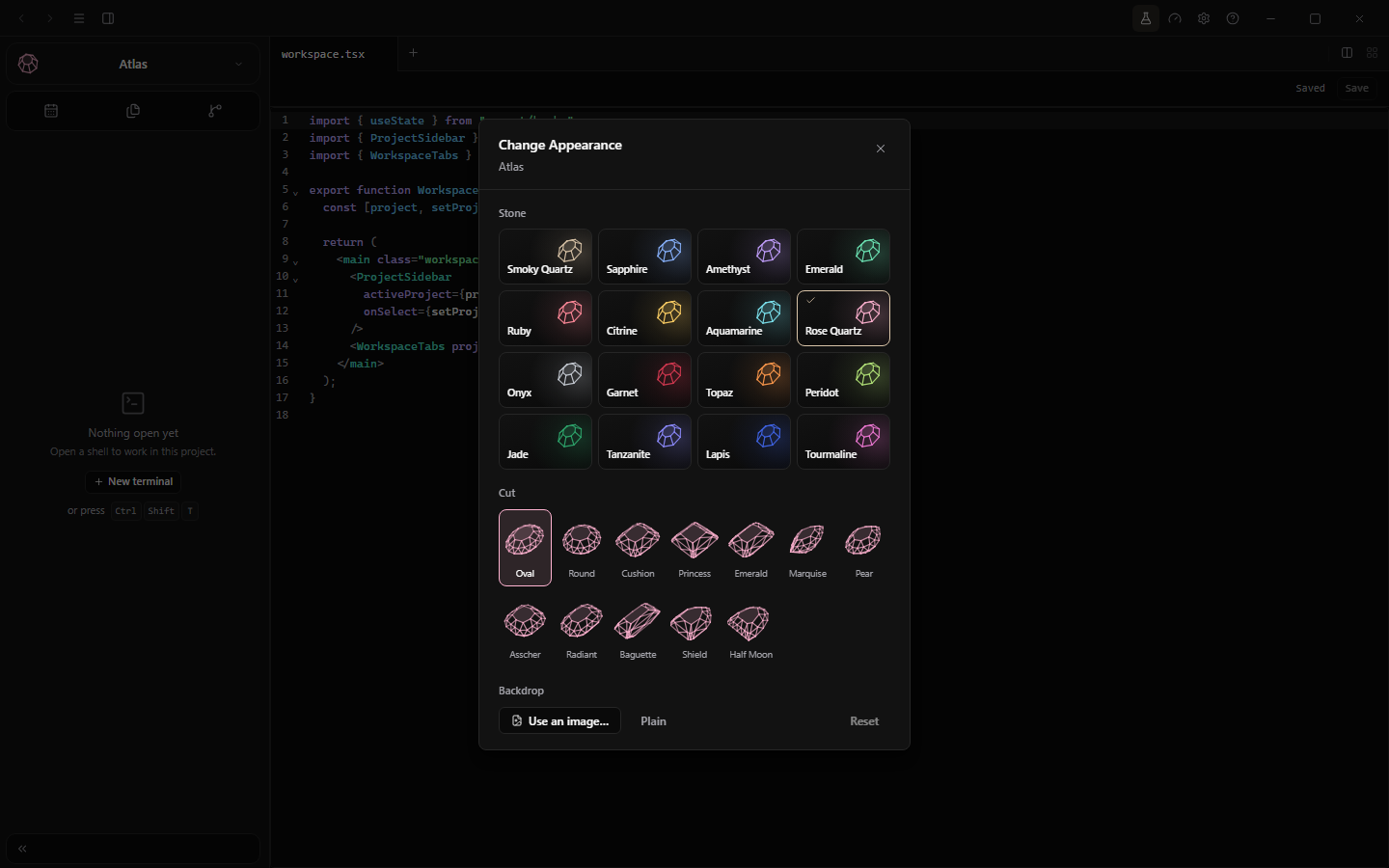
Right-click the project card or active header and choose Change Appearance…. This changes that project's identity, not the app-wide theme.
Stone: choose a color and matching backdrop.
Cut: choose the gem shape.
Backdrop: use an image from disk, choose Plain or Reset.
Stone, cut and backdrop belong to this project, independently of the global theme.
The card and active project header update as you choose. The header context menu also offers Hide/Show Project Card and Freeze/Unfreeze 3D Rotation. The project tile menu can restore a hidden card.
For shared interface colors and contrast, use Themes & colors.
Configuration
Keybindings
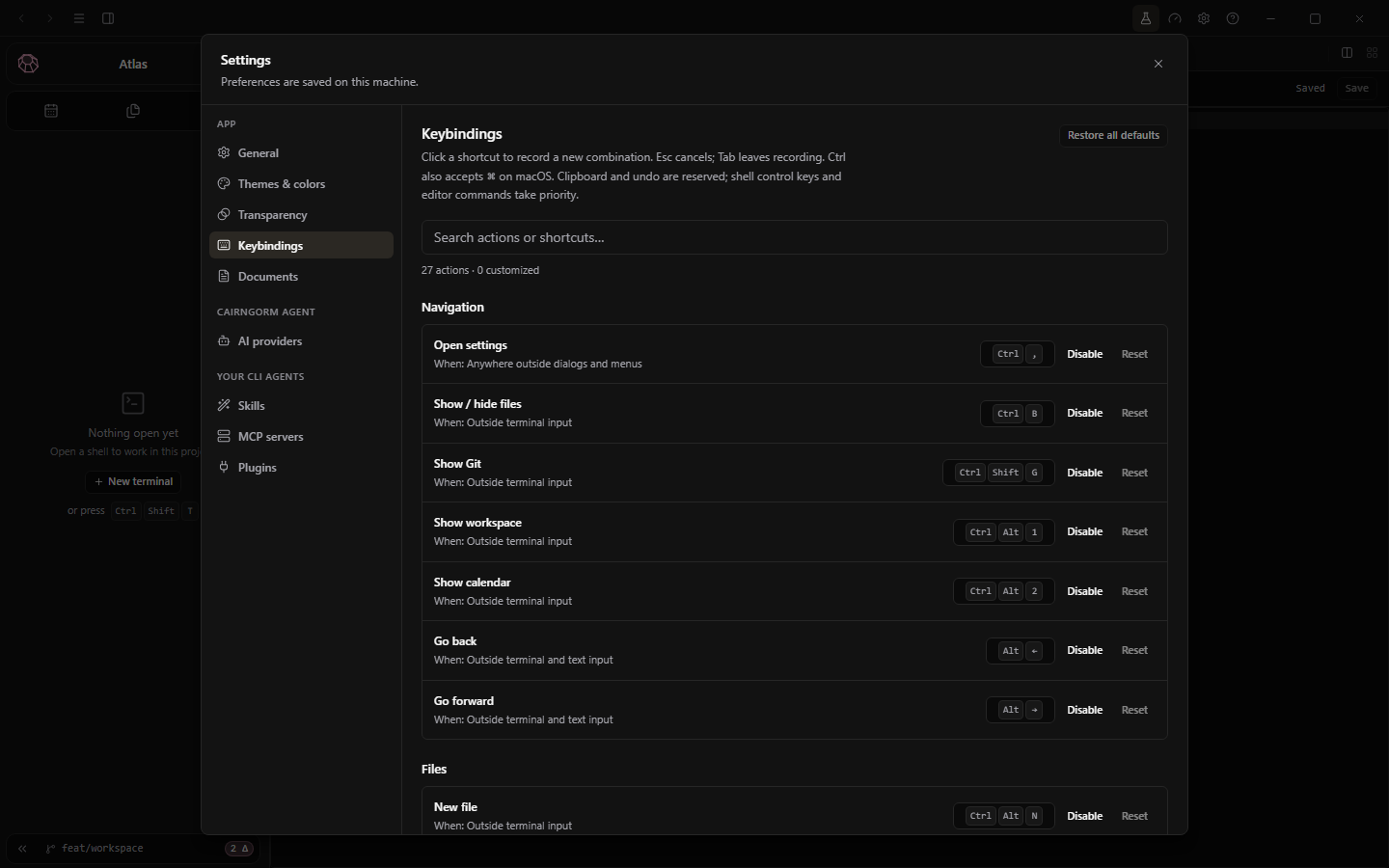
Open Settings → Keybindings, search an action and select its shortcut to record a combination. Esc cancels; Tab leaves recording. Disable/reset one binding or restore all defaults. The Help panel shows your effective shortcuts.
Search an action before recording a replacement shortcut. Defaults below are a reference, not a second binding layer.
Current defaults
Action
Shortcut
Context
Settings
Ctrl+,
Global
Files
Ctrl+B
App
Git
Ctrl+Shift+G
App
Workspace / Calendar
Ctrl+Alt+1 / 2
App
Back / Forward
Alt+← / Alt+→
Navigation
New file
Ctrl+Alt+N
App
Open file / folder
Ctrl+O / Ctrl+Shift+O
App
Save / Close tab
Ctrl+S / Ctrl+W
App
New terminal
Ctrl+N
App
New terminal from pane
Ctrl+Shift+T
Workspace
Native agent
Ctrl+Shift+N
Workspace
Next / Previous pane
Ctrl+Tab / Ctrl+Shift+Tab
Workspace
Next / Previous project
Ctrl+Alt+PageDown / PageUp
Workspace
Split vertical / horizontal
Ctrl+\ / Ctrl+Shift+\
App / Workspace
Close pane
Ctrl+Shift+W
Workspace
Zoom / Restore
Ctrl+Shift+Enter
Workspace
Font increase / decrease / reset
Ctrl+= / Ctrl+− / Ctrl+0
Global
Reattach window
Ctrl+Shift+A
Detached window
Global excludes dialogs/menus. App excludes terminal input. Navigation excludes text/terminal input. Workspace requires the workspace to be visible and includes terminal input. Clipboard, undo, shell and editor keys have priority; Ctrl also accepts ⌘ where the build supports it.
Configuration
Settings & local data
Settings includes General, Themes & colors, Transparency, Keybindings and Documents, plus the Cairngorm agent's AI providers and your CLI agents' Skills, MCP servers and Plugins. Project/calendar records use the app's local SQLite storage; preferences and workspace state are saved on the machine.
General settings plus all current settings pages, including Plugins, MCP and Skills.
Agent configuration
The default is ~/.panel/agent/config.json. Configuration-directory precedence is CAIRNGORM_AGENT_DIR, then PANEL_AGENT_DIR, then the default. Existing saved settings are preserved on ordinary startup.
Optional CLI integrations save runtime paths and the selected service under ~/.panel/agent/integrations.json. They do not export CLI settings or logins, copy tokens or transfer subscriptions; the original tool's configuration stays with it. An API key can be saved in local agent configuration or supplied by its named environment variable. Treat these files as sensitive; local storage is not a promise of encrypted secret storage.
Diagnostics and backup
The current Windows build's General → Diagnostics shows %APPDATA%\Cairngorm\logs. Keep build/tool versions and the relevant error when reporting a problem. Remove private paths, code, keys and tokens from logs first.
No automatic cloud backup is implied. Save project files in version control and back up important local data before resets or migrations. See Privacy for data flows, and Terminals for clipboard/scrollback settings.
Reference
Troubleshooting
Include your app version when reporting a problem; redact sensitive information from logs.
A CLI is missing or its login is not detected
Run its version command outside the app. Check PATH, Binary path and the login folder. Save edited paths, Scan again, then verify. Login detected does not prove model access or remaining quota. CLI setup.
The native agent cannot reach my provider
Check endpoint, model ID and key/environment variable. Test connection, Save, then start a new session. For local models, start the server. Check whether verified Codex is selected instead of the API route. API setup.
Git cannot find the repository or an operation fails
Check the open folder, Git installation, identity and remote authentication. Read the error before retrying; do not force-push or discard work to hide it. Resolve conflicts manually. Branches & remotes.
Tests appear without browser frames or individual rows
Use a Cairngorm terminal and a supported readable reporter. Frames require the Playwright bridge and inherited preload environment. Windows ASCII-only Playwright output can limit individual parsing; the capture uses TERM_PROGRAM=vscode for Unicode list output. Results/Output remain useful. Browser observation.
A shortcut types into the shell
Check the binding's context in Help/Keybindings; App bindings do not override terminal typing. Select the right clipboard mode in General → Terminal. Keybindings.
Colors or text are hard to read
Check the contrast preview, choose a readable preset or Reset adjustments. General controls text size. Applying a preset resets color adjustments. Themes & colors.
A website demo looks frozen or outdated
Hard-refresh, check Pause/Resume motion and use Replay walkthrough to restart a demo. A demo only moves while it is on screen. Website controls.
Reference
Website controls
Download: the hero offers the installer for the system you are browsing from (Windows, or Linux on x86_64 or ARM64); every other installer is in Download & install. The page only reads your browser's platform to choose it; nothing is sent anywhere.
See the app: the quiet link at the bottom of the hero scrolls to the live feature demos.
Pause / Resume motion: controls the crystal and every demo's guided tour; demos also pause offscreen or in a hidden tab.
Replay walkthrough: restarts a demo from its first step once its tour has ended. Tours play once, not in a loop.
Watch-only demos: each demo runs the real app but ignores clicks, typing, scrolling and selection; only its guided tour drives it. Its sample state stays inside the demo and resets on reload.
Documentation images: select an image to open its original 1440×900 capture in a new tab. Browser zoom provides a closer look; return to the docs tab to continue.
Demos run the current app's own components in your browser with sample native/project data. The workspace terminals show the original Claude Code, Codex and Oh My Pi (OMP) TUIs with three distinct conversations and local sample replies, not external model output. Plugins runs connection consent and states live, then replays the genuine Claude Code transcript of a recorded tldraw request and the real tldraw canvas recorded from that run, inside the app's plugin pane. Testing replays a real local Playwright run; Git uses a sample repository. The website itself cannot run agents or edit files, contacts no third party and sends no model requests.
Landing-page demos stay inline. Documentation images link to their static originals.
For screenshot provenance, see the documentation image manifest. Sample native calls are isolated; no real files, accounts or schedules were changed for those screenshots.
Autoplay failure exposes native controls. Without JavaScript, captures, feature descriptions and FAQ remain; these docs show all topics as a readable manual. The landing page deliberately does not auto-pause for system reduced motion—use its manual control. Docs have no animated scene or autoplay.